What Should You Check About Flashes and Screen Shake Before Releasing a Horror Visual Novel?
October 29, 2026
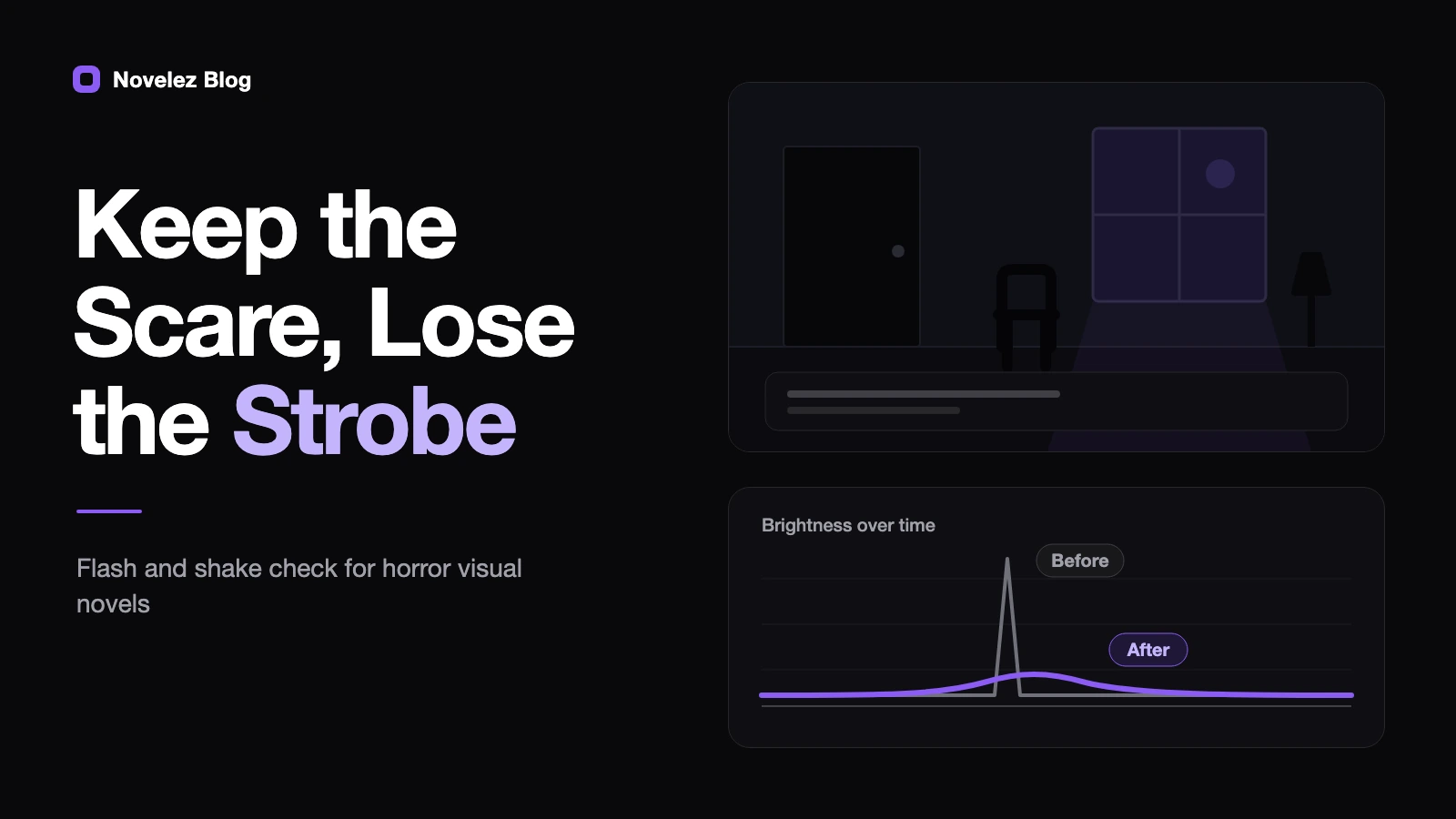
You're adding the last scares to a horror visual novel: a white flash when the lights die, a quick shake when something slams into the door, a red strobe while the alarm wails. Each one takes a single line of script, and each one can hurt someone. Bright, fast flashing can trigger seizures in people with photosensitive epilepsy, and a shaking screen can leave other players dizzy or nauseous.
Steam Scream V runs from October 26 to November 2, and plenty of horror visual novels get a discount or a patch around it. That makes this a good week to look hard at the effects you've already added.
This guide leans on three public references: the flash rule in W3C's WCAG 2.2, Microsoft's Xbox Accessibility Guideline 118 on photosensitivity, and the community-run Game Accessibility Guidelines. Engine examples come from the Ren'Py documentation. None of these can certify a game as safe, and neither can this post. What they do give you is a reliable way to find the riskiest effects and tone them down before release.
Where do flashes and shakes hide in a visual novel script?
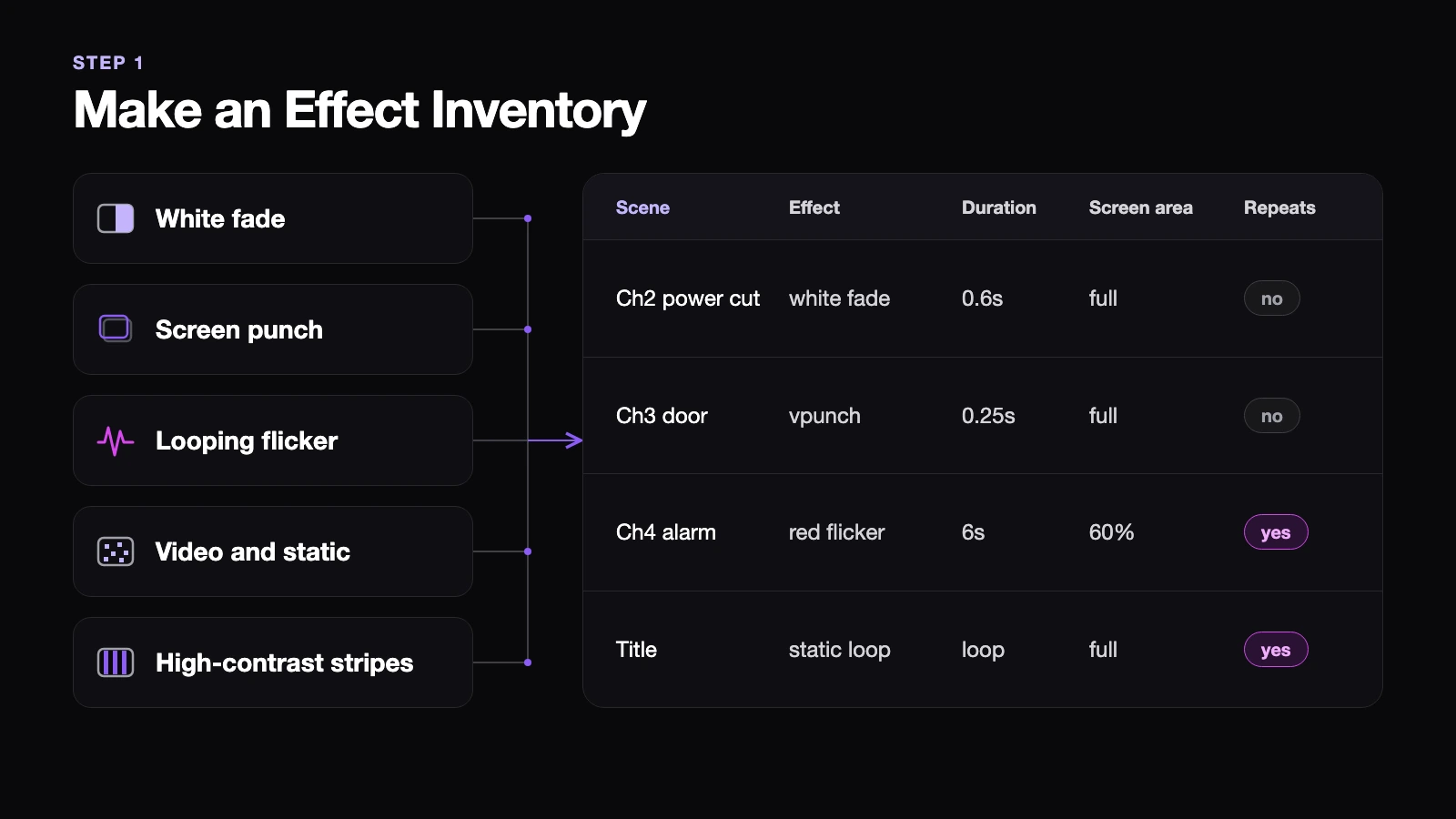
Start with a list, not a verdict. Search the whole script for anything that changes brightness quickly or moves the entire screen. In Ren'Py, the usual suspects are:
- A
Fadeto white or red with short timings. The Ren'Py Transitions page even usesFade(0.1, 0.0, 0.5, color="#fff")as its camera flash example. vpunchandhpunch, which shake the screen vertically or horizontally for a quarter of a second.- ATL transforms that loop alpha, brightness or position, like a flickering bulb or a pulsing heartbeat overlay.
- Movies and animated backgrounds: TV static, lightning, glitch layers, sirens.
- Patterns: high-contrast stripes, checkerboards, scrolling rows of repeated text.
For each effect, note the scene, what it does, how long it lasts, roughly how much of the screen it covers and whether it repeats. A five-column spreadsheet is plenty. Ten minutes of searching usually turns up something you forgot about, such as the flash you copied onto every chapter title card.
Which effects should you fix first?
The exact numbers vary between references, but they all point at the same things.
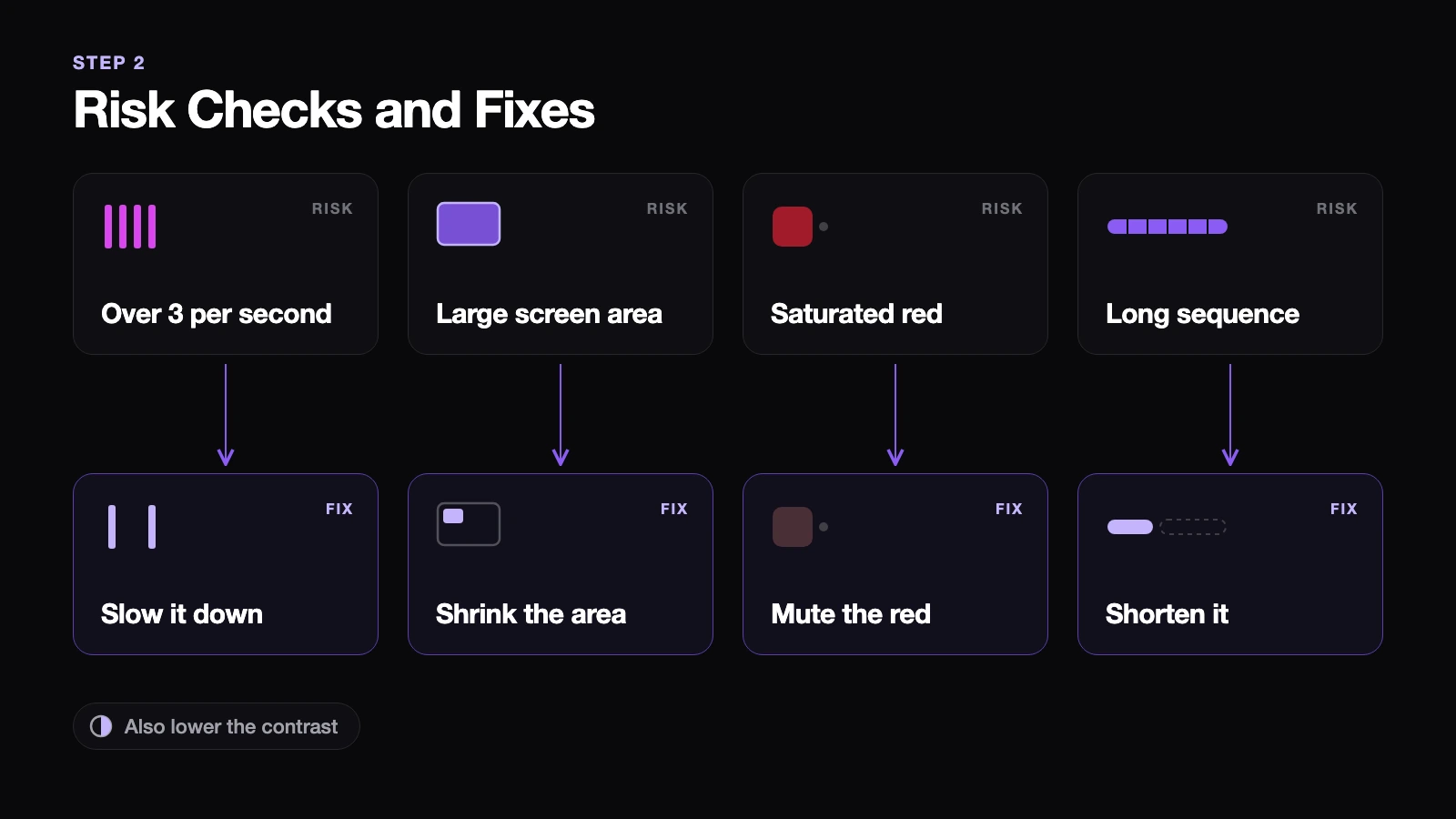
- Frequency. WCAG 2.2 Success Criterion 2.3.1 says content shouldn't flash more than three times in any one-second period unless the flashes stay below the general and red flash thresholds. Xbox Accessibility Guideline 118 uses the same rough line of about three per second.
- Area. WCAG measures flashing against a 10-degree slice of vision, which it approximates as a 341 by 256 pixel rectangle on a 1024 by 768 screen. XAG 118 treats flashes covering roughly 20 percent of the screen as a failure point, and the Game Accessibility Guidelines use 25 percent. A full-screen white flash is past all three.
- Red. WCAG and XAG 118 both give saturated red its own, stricter test. If your game has a red alarm strobe, change that first.
- Duration. XAG 118 notes that even low-intensity flashing can fail when it goes on for a long time, and the Game Accessibility Guidelines flag any flashing sequence lasting more than five seconds.
- Patterns. High-contrast stripes or grids covering a large part of the screen are a separate risk, and moving ones are worse.
A single full-screen white flash doesn't break the frequency rule on its own. The trouble starts when it repeats: lightning that strikes four times in one second, or a flicker loop that never ends.
XAG 118's fixes are practical. Lower the contrast between the bright and dark states, slow the flashing down, shrink the flashing area and desaturate the red. In a visual novel that might mean swapping a pure white flash for a soft gray fade of 0.3 seconds or longer, turning a strobe into one or two slow pulses, lighting only a window or lamp in the background instead of the whole frame, and moving the alarm from bright red to a darker, duller red.
What should players be able to turn off?
XAG 118 is explicit about priority: removing seizure triggers beats warning about them. Fix the content first, then let players control whatever is left.
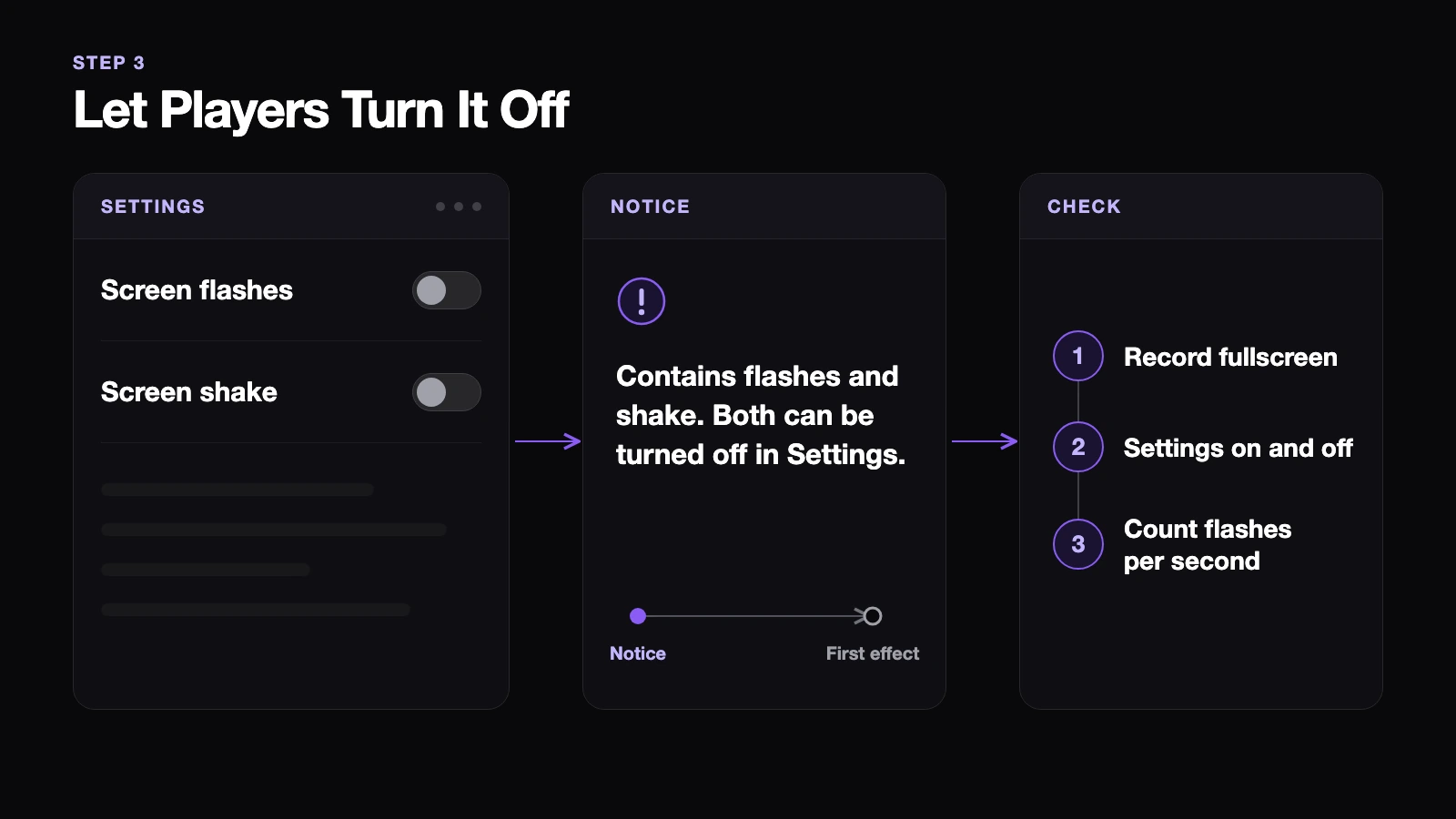
Two settings, one for flashes and one for screen shake, work better than a single switch. Ren'Py has a built-in transitions preference, and Preference("transitions", "none") turns transitions off (Screen Actions). The catch is that it also removes the gentle dissolves that keep scenes readable, which makes it a blunt tool. The Transitions page describes a finer route: a transition can be a Python function that checks a persistent setting and hands back a different transition. With that, a player who turns flashes off gets a plain dissolve where the flash was, and a player who turns shake off gets no vpunch at all.
Name each setting after what it does, like "Screen flashes" and "Screen shake". The Game Accessibility Guidelines warn that the term "epilepsy safe" must never be used (Game Accessibility Guidelines), because no setting can promise that. If you sell on Steam, the Camera Comfort accessibility tag covers options to adjust or disable effects such as screen shaking. Your shake setting is what makes that tag honest.
If your visual novel is a browser game built with your own HTML and CSS, there's also a system signal you can read. The prefers-reduced-motion media feature reports whether the player has asked their operating system for less motion, through settings like Reduce motion on macOS and iOS or Remove animations on Android. You can use it to start with shake turned off. It says nothing about flashes, though, so the flash setting still has to be your own.
Last, add a short notice before the game starts and on the store page, for example: "This game contains screen flashes and screen shake. Both can be turned off in Settings." Make sure it appears before the first effect does.
How do you check the fixes before release?
Record every scene on your list in fullscreen, once with the settings on and once with them off. I'd always test at fullscreen, since that's the largest size a player will see and the area checks only mean something there. Watch each clip at normal speed, then step frame by frame around each flash and count how many times the screen brightens within one second. Confirm that switching the settings off really removes every effect, including the ones in menus, the title screen and chapter cards, which are the places people tend to miss.
XAG 118 points to the Harding FPA test as a tool for analyzing footage. If your game leans heavily on flashes, a paid analysis is the most reliable check. Without one, the list and the recordings still catch most obvious triggers. After that, ask a few testers, ideally including someone prone to motion sickness, to play your scariest chapter with the effects off and tell you whether anything still shook or flickered.
Horror runs on surprise, and a flash or a shake is the cheapest surprise there is. A sudden sound, a dead silence, a hard cut to black or a character who appears without warning can land the same jolt without the risk. Which effect in your horror visual novel would be hardest to give up, and what would you try in its place?