Why Is My Game So Slow? One Simple File Conversion Fixes It!
April 9, 2026
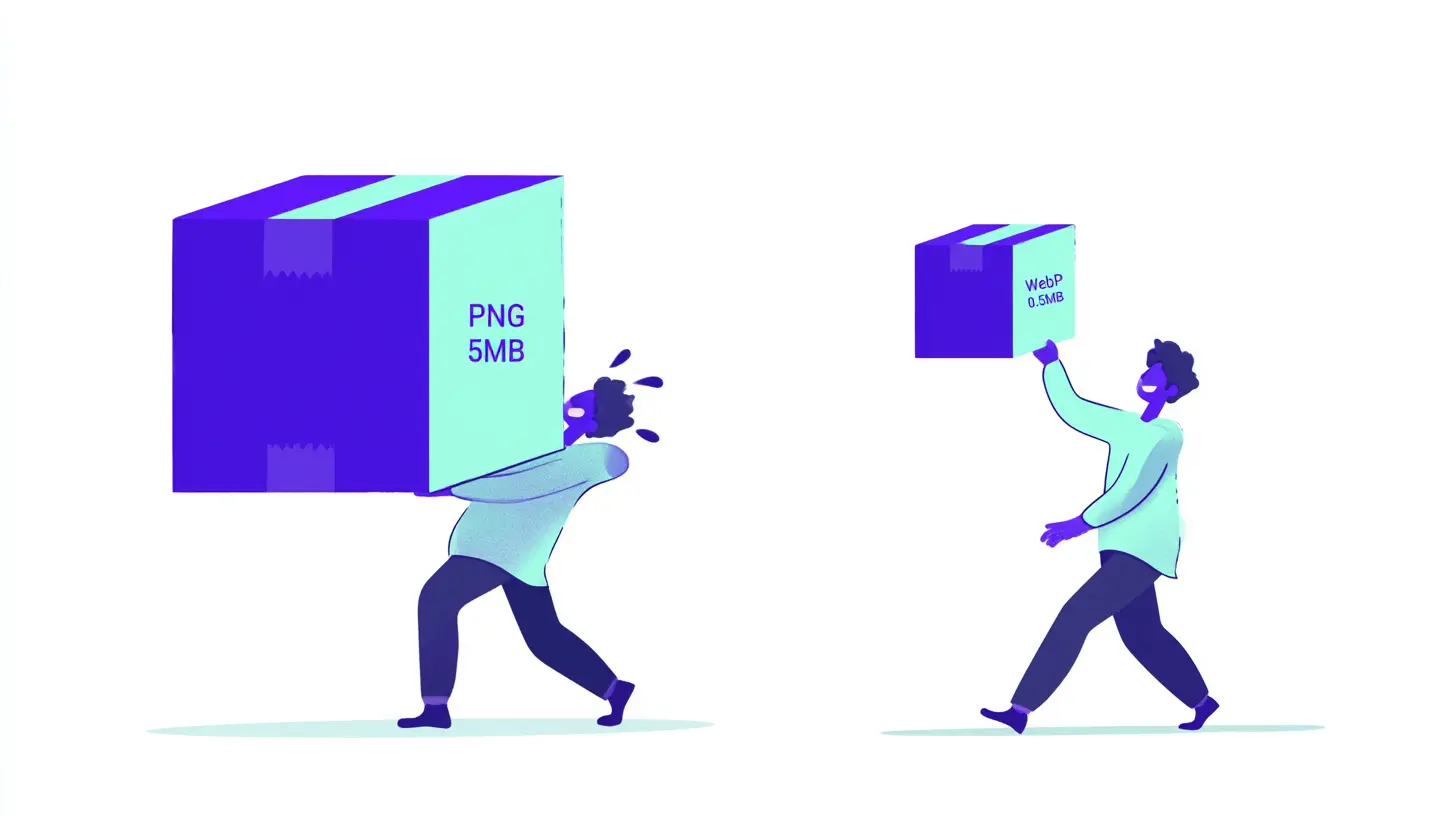
Ever finished building your game, hit play to test it, and thought... why is this loading so slow?
Here's the thing — if you're dropping in raw PNG files, MOV clips, and MP3 tracks straight from your project folder, your game is probably carrying way more weight than it needs to. The browser just wasn't built to handle those formats efficiently.
The fix? Just convert your files to the right format before uploading. It's a lot simpler than it sounds, I promise.
📦 Wait, why does the file format even matter?
Yeah, I've been there too — wondering why something so simple could slow everything down.
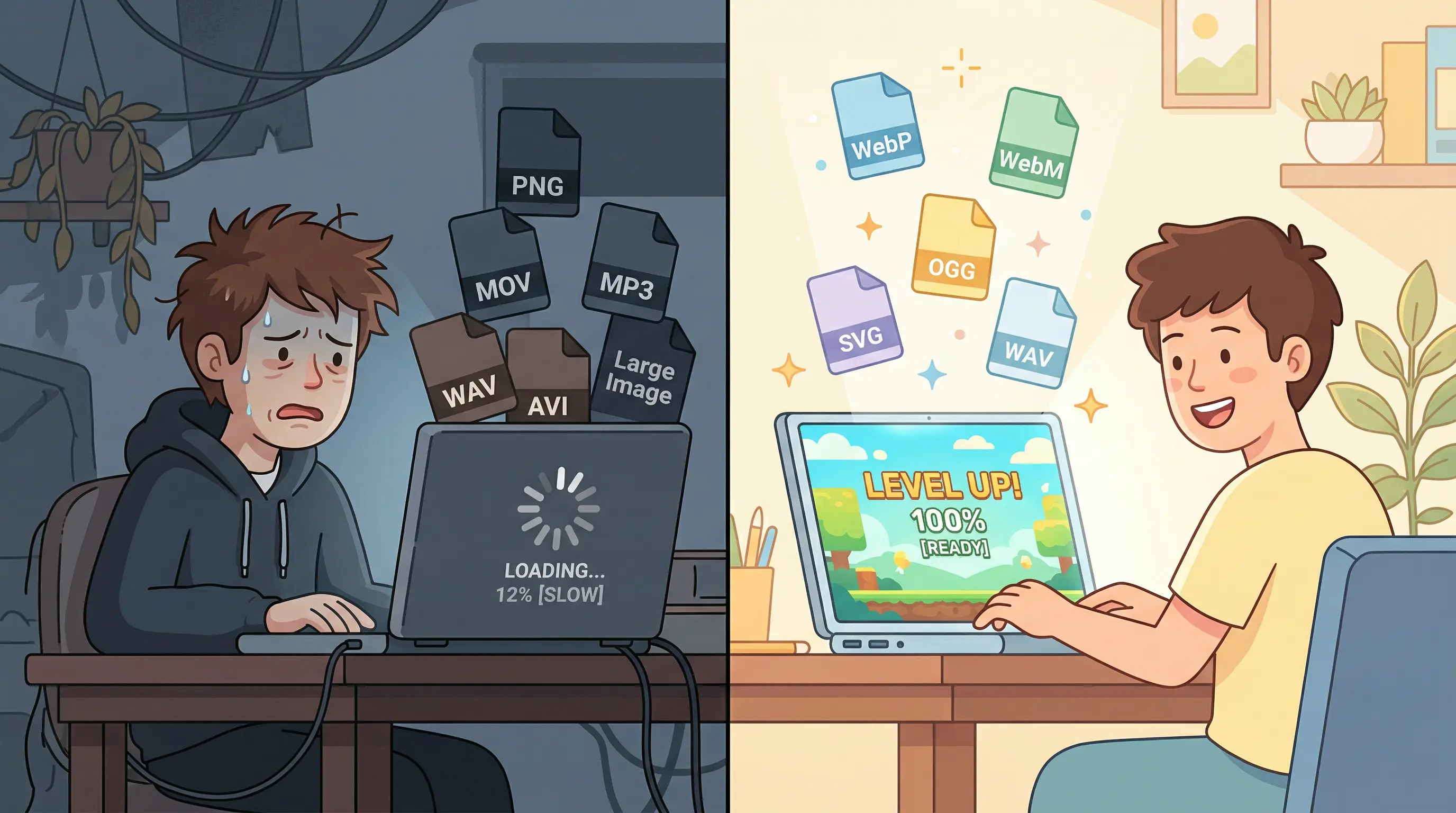
The web runs best on three specific formats:
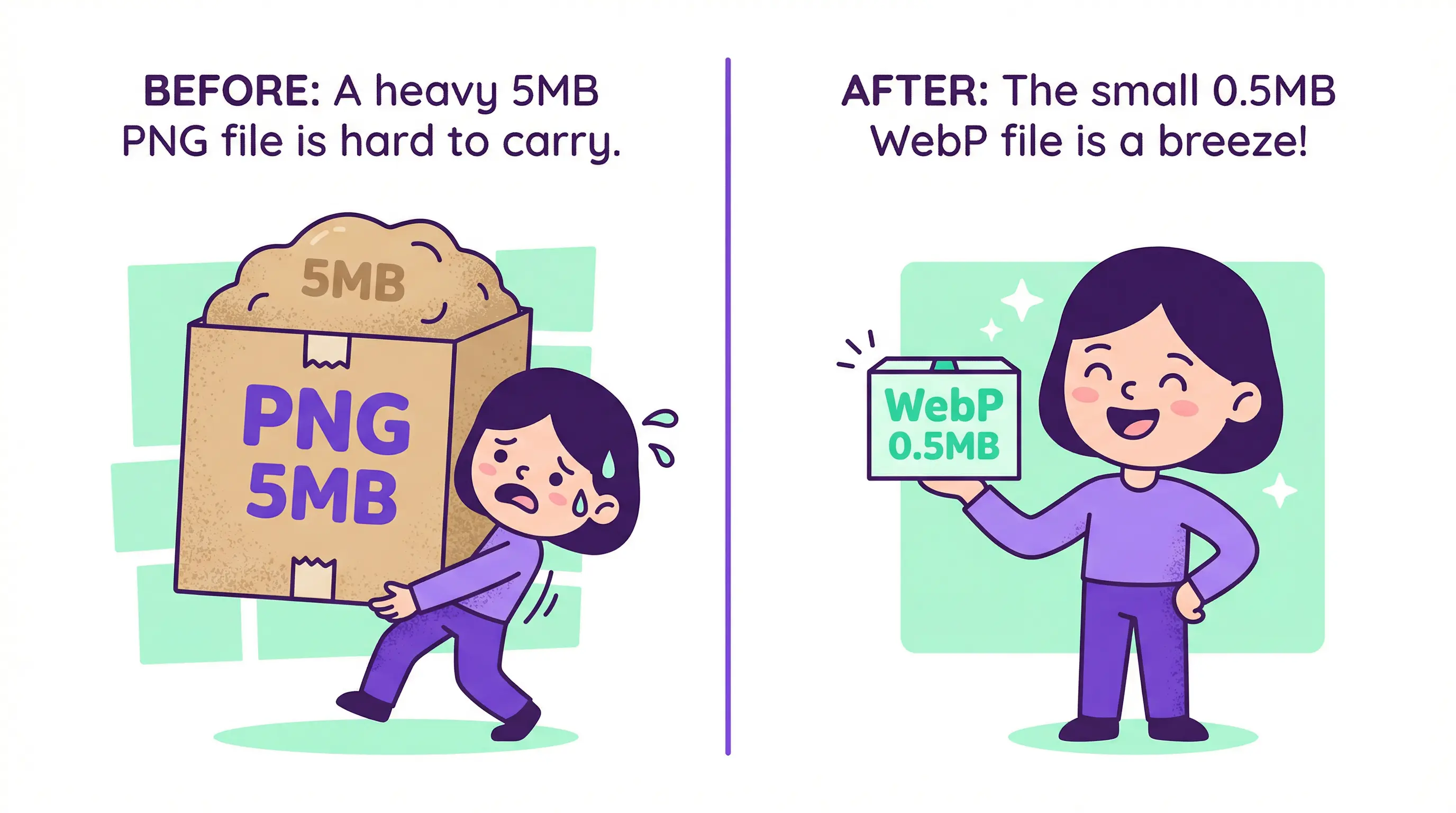
- WebP for images — looks nearly identical to PNG, but way smaller
- WebM for video — loads and plays much smoother in browsers than MOV or MP4
- OGG for audio — smaller than MP3 and plays reliably across browsers
Switching to these three can make a noticeable difference in how fast your game loads and how smooth the whole experience feels for players.
🛠️ Where do I get the conversion tools?
Novelez made a free set of conversion tools just for this — and the best part is, there's nothing to install.
You just open the files in your browser and they run locally. No internet connection needed, nothing gets uploaded to a server. Your files stay on your computer the whole time.
Inside the folder, you'll find three tools:
1️⃣ PNG → WebP converter — for character sprites, backgrounds, UI elements
2️⃣ MOV → WebM converter — for in-game video clips
3️⃣ Sound → OGG converter — for BGM, sound effects, and voice lines
🖱️ Using them is genuinely easy
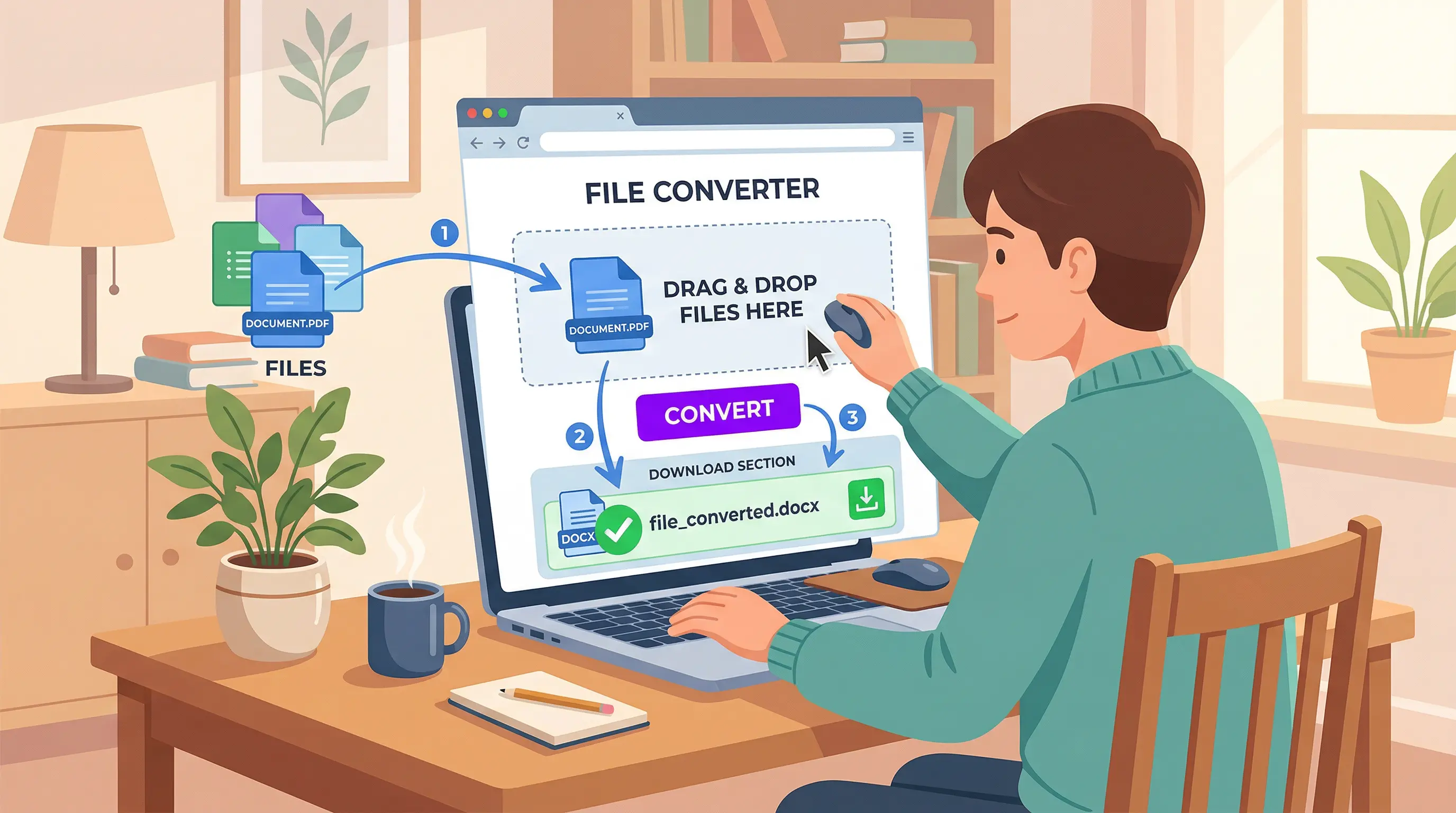
We're talking under 30 seconds per file here.
1️⃣ Drag and drop your files into the tool, or click to select them
2️⃣ Hit the convert button and let it do its thing
3️⃣ Your converted file appears at the bottom of the screen — just download it!
That's really it. You can drag multiple files in at once for batch conversion too.
⚠️ Got transparent images? Read this first
One thing to keep in mind — if you're converting images with transparent backgrounds (like character sprites), make sure you select the "lossless" option.
Regular lossy conversion can mess up the transparency, leaving you with weird white edges or a blown-out background where there shouldn't be one. If a character sprite suddenly looks off after converting, this is almost always why. Lossless = transparency stays intact.
🎮 After the conversion...
Once you upload your converted files and rebuild your game in Novelez, the difference in loading speed is usually pretty obvious.
It matters a lot for players on mobile or slower connections — even if your story is amazing, people will drop off if the game takes forever to start. A little prep work on your end makes a big difference on their end.
So before you publish, run your files through the converter. It takes a few minutes and your players will thank you for it (even if they don't know why). 🎬
Got questions while using the tools? Feel free to reach out. Next time, we'll talk about how to make your characters feel more alive inside Novelez — stay tuned!
April 9, 2026