Understanding Asset Scopes
Understanding Asset Scopes
Assets in Novelez are organized into three separate scopes, each with a different purpose and set of permissions. Understanding this structure makes working with assets much easier.
The Three Scopes
Default (Built-in) Assets
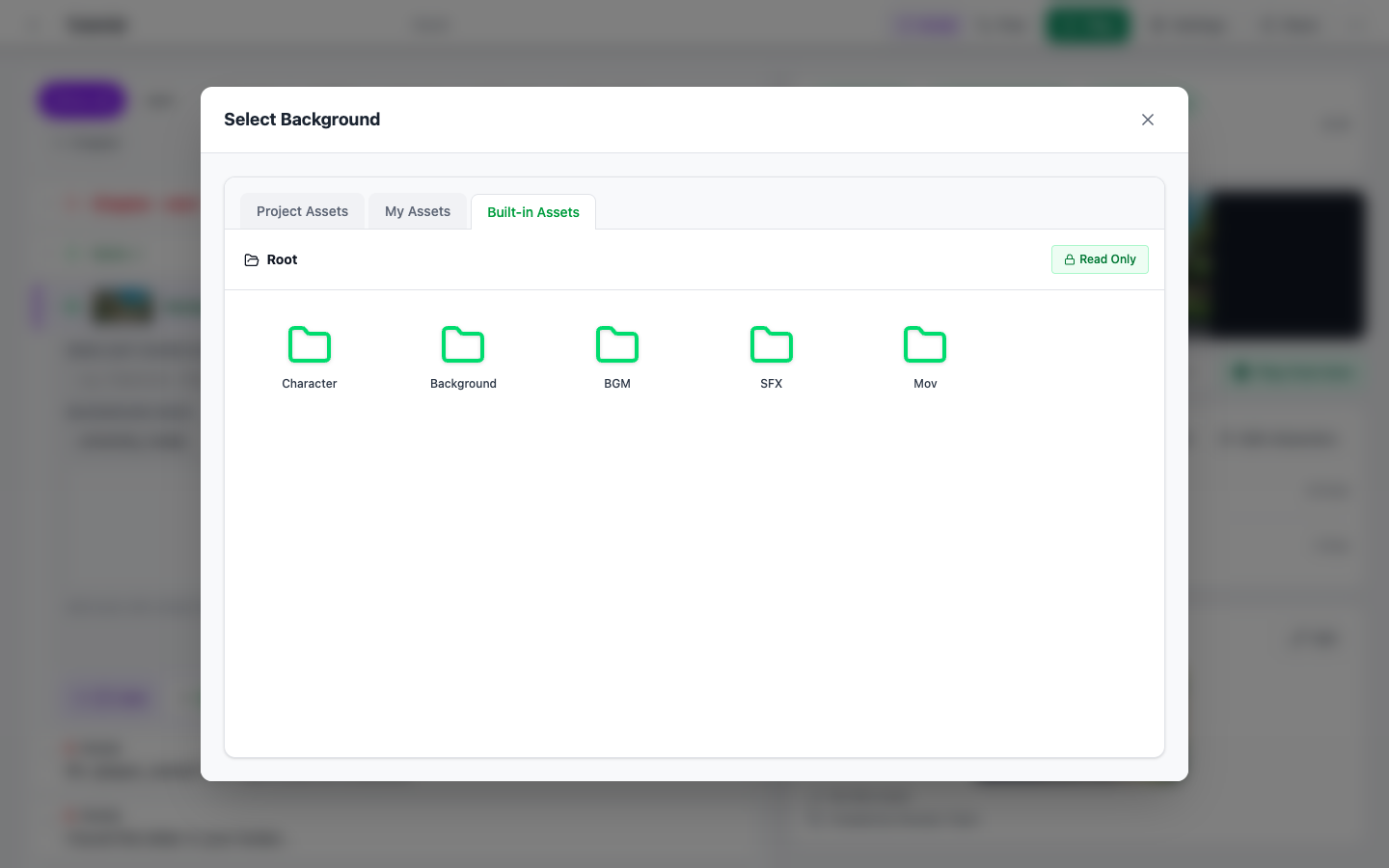
A shared asset library provided by Novelez. It is organized into five categories — Character, Background, BGM, SFX, and Mov — and every user has access to the same set of files. This scope is read-only, so you cannot upload or delete files here. Even without preparing any assets of your own, you can build your first game using only the built-in library.
My Assets (Global)
Your personal asset storage, tied to your account. Files uploaded here can be used across all of your projects. This is the right place for common assets you plan to reuse across multiple games, such as brand logos or shared BGM tracks.
Project Assets
Assets that belong to a specific project. Where a file is stored depends on the tab you upload from: files uploaded from the Project assets tab are stored as project assets. Use this scope for files that are unique to one game and would not be needed elsewhere, such as project-specific character art or backgrounds.
Switching Between Scopes
Tabs at the top of the Assets page let you freely switch between the three scopes. To see Project Assets on the Assets page, first choose the project under Target project at the top.
The editor uses the same tabs. The asset picker that opens from buttons such as [Choose image] in the Script column shows three tabs — Project assets, My assets, and Built-in Assets — so while writing lines you can pick files from whichever scope you need.
- In the Script column, select a line and click a button in the details under the line, such as [Choose image].
- In the asset picker, choose a scope with the tabs at the top.
- Open a folder with a single click (or Enter). Click a file card and that file is used right away.
The picker remembers the last tab you viewed and opens on that tab first. It opens on the Built-in Assets tab only when it has no remembered tab and you have not uploaded any files. Built-in assets are read-only, so you can only select from them.
Which Scope Should I Use?
- For quick prototyping → Default (Built-in) Assets
- For files reused across multiple games → My Assets
- For files that belong to a single game → Project Assets
Next Steps
With the structure of asset storage in mind, let us actually upload some files.