Block Reference Overview
Block Reference Overview
This chapter is a reference document that goes through every base block available in the Novelez editor, one by one. For each block you can check what it does, which values you can edit in the details under the line, and how it is typically used.
How to Add a Block
Blocks stack up as lines in the Script column on the left. Every new block is added from the insert bar ("Add a block") below the list.
- Click the line you want the new block to follow.
- Press the block button you need on the insert bar.
- The new block is placed right after the selected line, and the Stage on the right reflects it immediately.
The insert bar appears right under the details of the selected line, and is pinned to the bottom of the list only when no visible line is selected; in that case the new block is appended to the end of the visible list. The same applies when you are filtering to a single chapter and nothing is selected in it.
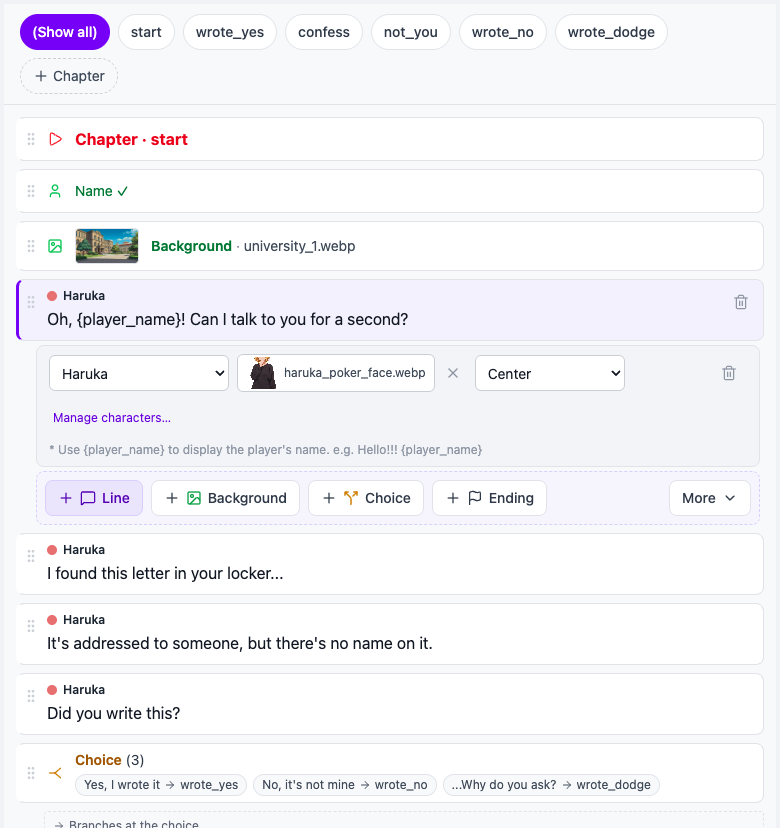
Base Blocks on the Insert Bar
The four buttons on the left of the insert bar cover the blocks you will use most.
- [+ Line] (purple button) — Shows dialogue (character, expression, position included; without a character it becomes narration)
- [Background] — Switches the background image
- [Choice] — Presents choices to the player and branches to a different chapter for each option
- [Ending] — Marks the end of the game
Blocks Under [More ▾]
All the other blocks are in the list that opens with [More ▾]. In order:
- Music — Plays background music
- Sound — Plays a sound effect
- Stop music — Stops the currently playing background music
- Show character — Displays a character on screen
- Hide character — Removes a character from the screen
- Chapter — A named waypoint inside your story
- Go to chapter — Moves play to the chosen chapter when reached
- Player info — Collects player information (name, gender) at the start of the game. Only one is allowed per game, so it is greyed out once you have one.
- Variable and Condition — See "Advanced Blocks" below
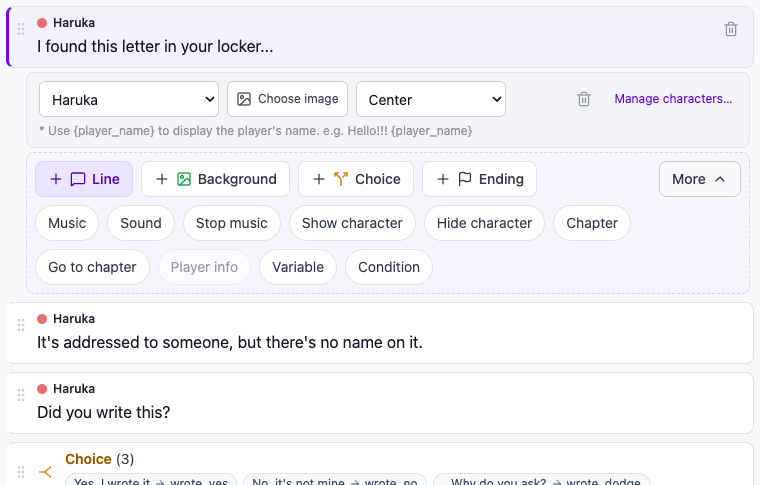
Advanced Blocks
Variable and Condition are at the bottom of the [More ▾] list. There is no toggle to turn them on — you can add them at any time. They are used for more complex logic such as quizzes, affection systems, and conditional endings, and are covered in the "Advanced Features" chapter — not here.
Details Under the Line, and Deleting
- Dialogue lines are typed directly inside the line. The details under the line let you pick the character, the expression image, and the position.
- Every other line is selected with a click, and a Selected block settings strip opens right under it. With the keyboard, focus the line and press Enter or Space.
- Drag the six-dot handle on the left of a line to reorder it.
- Hover over a line to see the trash can on its right. Deleting happens immediately with no confirmation; undo it with Ctrl+Z (⌘Z on Mac) outside a text field.
How to Use This Chapter
Each block page follows the same structure:
- Purpose — What the block does
- Key Properties — The values you can edit in the details under the line
- Usage Tips — Common patterns and things to watch out for
Jump straight to the block you are curious about, or read through in order to learn the full toolkit.
Next Steps
Let us start with the first block, Player info.