Dialogue Block
Dialogue Block
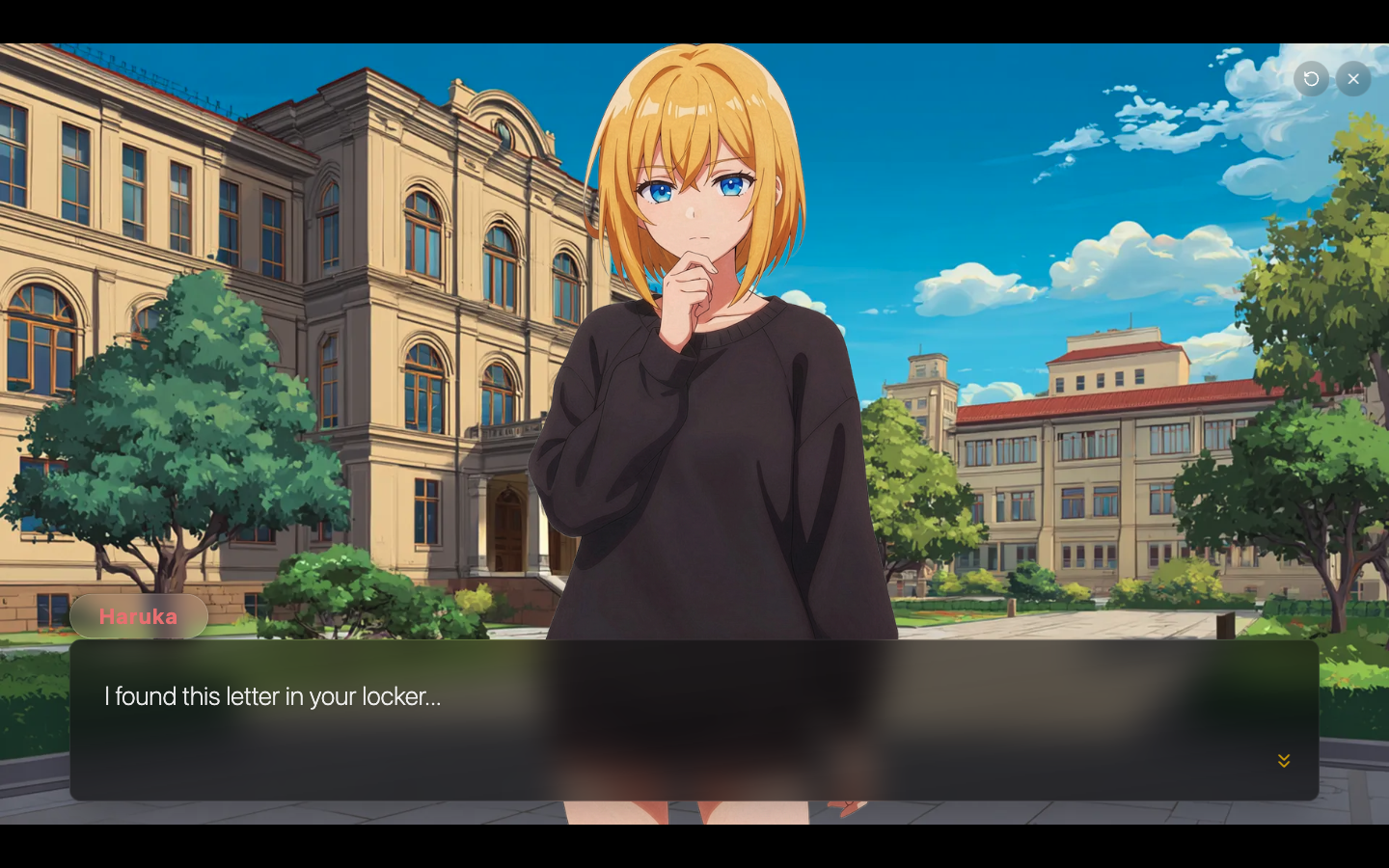
The Dialogue block is the most essential block in Novelez — most of a visual novel is made up of Dialogue blocks. You can set the speaker, expression, and position all within a single block, making it easy to construct fine-grained staging. Unlike other blocks, a dialogue line is typed directly inside the line.
Writing a Dialogue Line
A dialogue line holds the speaker's name tag and a text field in a single row. While empty, the field shows the hint "Type a line · Enter for next line · Shift+Enter for line break".
- Press the purple [+ Line] on the insert bar to create a new dialogue line. The new line inherits the speaker of the dialogue just above it, or the first character if there is none.
- Type the line in the text field. The dialogue box on the Stage on the right updates right away.
- Press Enter to create a new line right below with the same speaker; the cursor moves there.
| Key | What it does |
|---|---|
| Enter | Creates a new dialogue line right below with the same speaker and moves the cursor (ignored while composing with an IME) |
| Shift+Enter | Line break inside the line |
| Backspace on an empty line | Deletes that line and selects the line above (if the line above is a dialogue line, the cursor lands at its end; on the very first line nothing is deleted) |
| Ctrl+Z / Ctrl+Shift+Z | Undo / Redo outside a text field (⌘Z / ⌘⇧Z on Mac) |
Key Properties
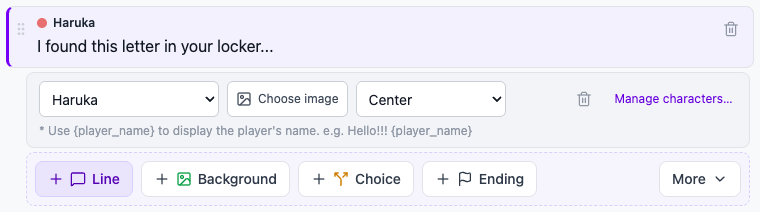
When you select a dialogue line, a one-row details strip appears under it.
- Character (characterId) — Who is speaking. Choose (Narration), Player Monologue, or any character registered in the Characters window. The [Manage characters…] link at the end of the strip opens the Characters window.
- Expression / Image (expressionUrl) — The character image to show with the dialogue. Press [Choose image] and pick it from the asset picker; a thumbnail and an × appear, and × clears it. Leave it blank to keep whoever is currently on screen as-is. Narration cannot have an image.
- Position (position) — Where to display the character (Left / Left-Center / Center / Right-Center / Right).
- Sound Effect (soundEffect) — Exists only on blocks that already had a sound effect set here. It is not shown in the details under the line, only in the Flow view's block settings panel; that sound still plays. To add a new sound effect, use a Sound block.
- Dialogue (text) — The actual text shown on screen. You type it in the text field inside the line. A new dialogue line starts empty.
- Delete — Use the trash can in the strip (or the one that appears when you hover over the line). It deletes immediately with no confirmation, and Ctrl+Z brings it back.
Usage Tips
- Narration without a speaker — Setting the character to "(Narration)" shows only the body text, without a speaker name. It is ideal for situational descriptions or inner thoughts.
- Player dialogue — Setting the character to "Player Monologue" displays the name the player entered in the Player info block.
- Combine with Show character — When introducing a character for the first time, use a Show character block to bring them on screen, then use Dialogue for their lines. A character with a default image appears just by being picked in Dialogue, but pairing with Show character keeps the staging clear.
- Use substitution variables — Tokens like
{player_name}inside dialogue are replaced with the player's input. This needs theplayer_namevariable to have a value (normally filled in by a Player info block with name input turned on); without one, a warning tells you{player_name}will be shown as literal text. - Keep blocks short and rhythmic — Several short blocks generally feel better than one long one when it comes to play rhythm. Chaining lines with Enter makes splitting quick.
- Check by playing — Select a dialogue line and press [● Play from here] under the Stage to see it on a real screen from that line.