Chapter Block
Chapter Block
The Chapter block gives a name to a specific point in your story. It is invisible to the player, but Choice, Condition, and Go to chapter blocks reference these names as their destinations. Chapters are the anchors that let you divide your story into parts or build branching routes, making them one of the most important blocks.
Adding a Chapter
- Select the line the new chapter should follow.
- On the insert bar, open [More ▾] and choose Chapter. If the chapter pill row shows [+ Chapter], that button works too.
- Click the new chapter line to select it; the Chapter name field opens in the details under the line. Type the name.
Key Properties
- Chapter Name (labelName) — A unique name that identifies this chapter. Letters, numbers, and underscores are recommended. Renaming a chapter also updates every Choice, Condition, and Go to chapter that points to it. When renaming, edit the characters in place rather than clearing the whole name first — if the name passes through an empty value, the choices, conditions, and Go to chapter blocks pointing at it are not updated.
The Game Starts at the Top of the List
The game plays from the top block of the list — you do not need a chapter named start. A Chapter block is only a name tag, so if a chapter has no Ending or Go to chapter at its end, play continues into the next chapter in the list.
Below the last line of each chapter, a dotted chapter-end strip shows where play goes next, so check here that the flow is what you intended.
- "Ends with an ending"
- "Then → go to chapter 'x'" — the chapter name is an underlined button; click it to jump straight to that chapter.
- "Then → continues into the next chapter 'x'" — shown in orange, with an [Add Go to chapter] button.
- "Then the unchosen branch 'x' plays next" — a red warning. The same [Add Go to chapter] button fixes it on the spot.
- "Branches at the choice", "Moves by condition", and "Then the game ends" cover chapters that end in a choice split, a condition, or the end of the game.
If any spot runs into an unchosen branch, a red banner ("N place(s) where an unchosen branch plays next.") appears above the list, and its [Show first] button takes you to the first such spot.
Filtering with Chapter Pills
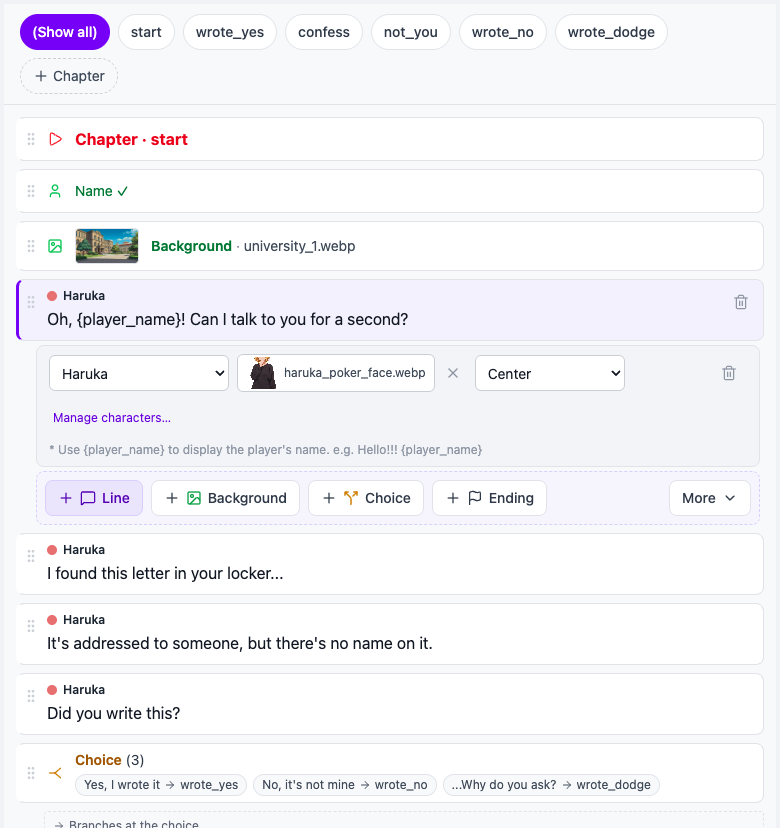
With two or more chapters, a chapter pill row appears at the top of the Script column: [(Show all)], one pill per chapter, and [+ Chapter].
- Click a pill to show only that chapter's lines; the chapter title line becomes selected.
- Click [(Show all)] to see every line again.
- The filter also follows when you step with [Prev] / [Next].
Jumping Back from a Choice
Under the title line of a chapter that a choice points to, you will see back-chips:
← Choice "Go left"— an option of a Choice that leads here← Go to chapter (in 'start')— a Go to chapter block that sends play here← Condition (in 'x')— a Condition block that sends play here
Up to three chips are shown; press [+n] to see them all. A chip takes you back to that choice, jump, or condition line, and the line you land on is highlighted in purple for 1.5 seconds. If you were filtering by chapter, the filter switches to the chapter that holds that line.

Usage Tips
- Use meaningful names — Names like
chapter1_introorroute_a_good_endmake it much easier to pick the right destination when editing a Choice block. - No duplicate names — If two chapters share the same name, destinations become ambiguous. Keep every chapter name unique.
- Split into parts — In larger projects, putting a chapter at the start of each part lets you use the chapter pills at the top to show just that chapter for easier editing.