Background Block
Background Block
The Background block is used to change scenes. It switches the background image and clears any characters on screen at the same time, making it the natural choice whenever the location changes.
How to Add It
- Select the line the scene change should follow.
- Press [Background] on the insert bar. A background line appears right after the selected line.
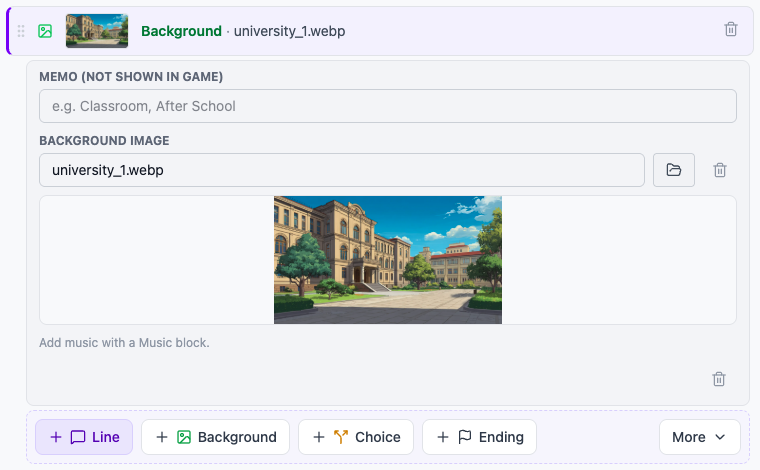
- Click the background line to open the details under the line, then press [Select Background] next to Background image to pick an image.
A background line shows a thumbnail and the file name of the chosen image, or "Choose an image" if you have not picked one yet. The Stage on the right shows the background as it stands at the selected line; if the selected line is a chapter title line, or nothing before it has set a background or a dialogue yet, it previews the next background in the same chapter.
Key Properties
- Memo (not shown in game) — A note that identifies the scene (e.g., "Classroom", "Park"). It helps you organize the block list and is never shown in the game.
- Background Image (assetUrl) — Press [Select Background] on this field and pick an image from the asset picker. You cannot type an address directly.
- Background music (musicUrl) — Only shown on blocks that already have music set here; that music still plays. To add new music, use a Music block.
Usage Tips
- One Background block per location change — Add a Background block whenever the location shifts, and backgrounds will transition smoothly.
- Use a Music block for music — If each location needs a different track, place a Music block right after the Background block.
- Image aspect ratio — The game screen is wide by default, so 16:9 images fit best.
- Prefer WebP — Backgrounds tend to be large; converting them to WebP before uploading makes loading noticeably faster.