Show Character Block
Show Character Block
The Show character block displays a character on screen. You pick a character registered in the Characters window, choose which image to show, and decide where on the screen the character appears. It lives under [More ▾] on the insert bar.
How to Add It
- Select the line the character should appear after.
- On the insert bar, open [More ▾] and choose Show character.
- Click the new line to open the details under the line, then set the character, image, and position.
- Check the result on the Stage on the right, which shows the background and characters as they stand at the selected line.
Key Properties
- Character to show (characterId) — Pick one of the characters registered in the Characters window.
- Image (assetUrl) — The image to display. In addition to the default image, you can pick a specific expression or pose. Press the button on the image field and choose from the asset picker (you cannot type an address directly).
- Position (position) — Where on the screen to place the character. Choose one of:
- Left (left)
- Left-Center (left_center)
- Center (center)
- Right-Center (right_center)
- Right (right)
Usage Tips
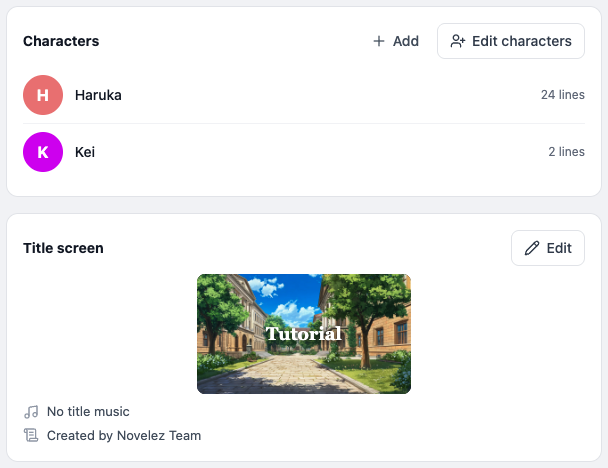
- Register characters first — Show character can only pick characters that already exist. Open the Characters window with [+ Add] or [Edit characters] on the Characters card on the right, and add them there. [Manage characters…] in a dialogue line's details and Characters in the [⋯ More] menu in the header open it too.
- Default image — If you set a default image on the character in the Characters window, Show character will use it automatically when no image is specified.
- Multiple characters at once — Placing several Show character blocks in sequence puts multiple characters on screen at once. Give each one a different position so they do not overlap.
- Expression changes — Showing the same character again with a different image creates an expression-change effect.
- Leaving is separate — To take a character off screen, use a Hide character block (also under [More ▾]).