Preview Basics
Preview Basics
Novelez lets you play your game directly from the editor. Since it runs in the same interface real players will see, it is the most accurate way to verify dialogue pacing and staging.
How to Launch
There are two ways to play, and they differ in where playback begins:
- The green [Play] button in the header (hint: "Plays from the title screen") — Runs the game from the title screen.
- [● Play from here] in the bar under the Stage on the right — Runs the game from the line selected in the Script column.

What Playback Reproduces
Playback faithfully reproduces:
- Title background image and music
- Character entrance / exit staging
- Text window typing speed and sound effects
- Choice branches and chapter jumps
- Automatic branching from variables and conditions
- Ending screens
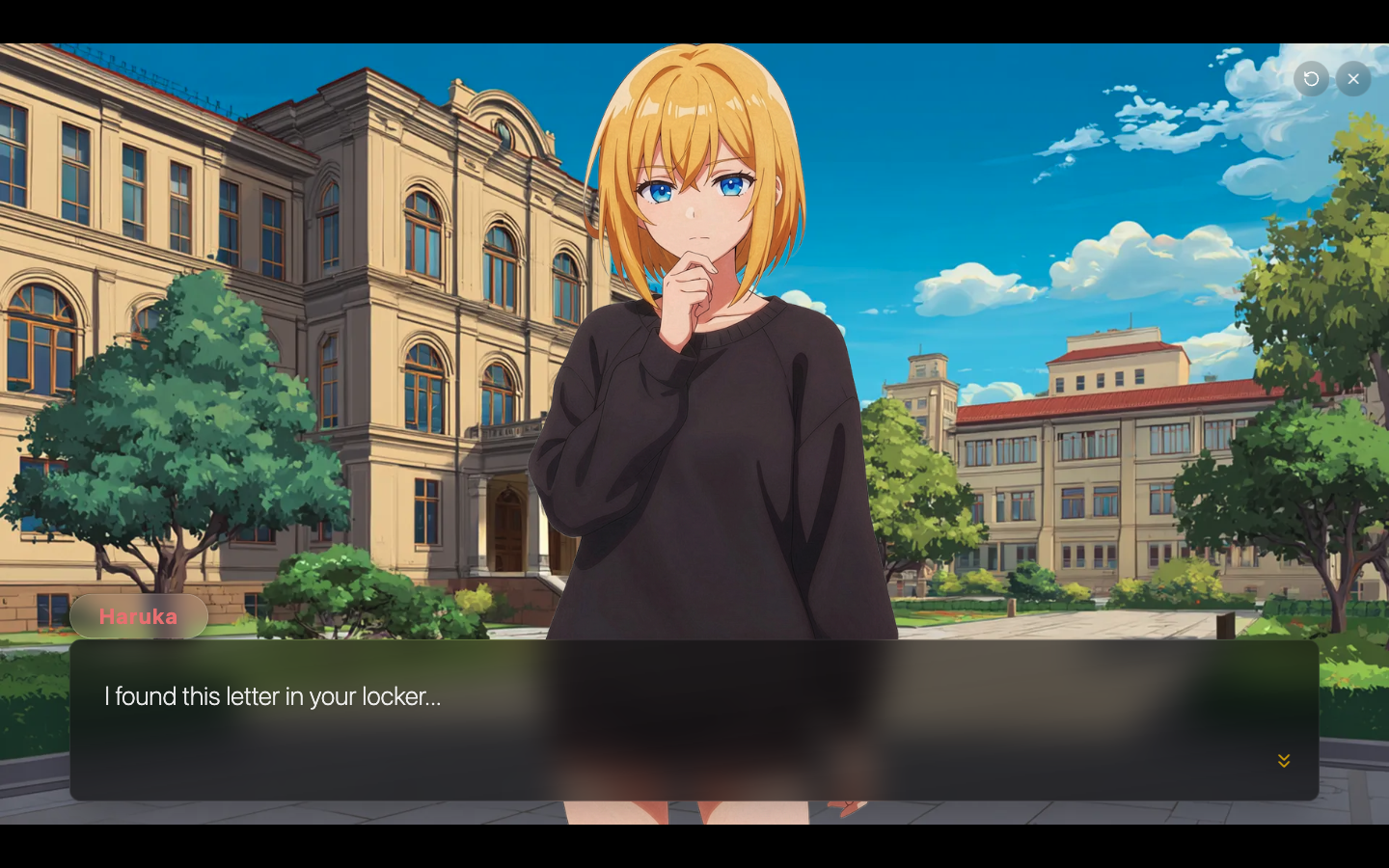
Starting from the Selected Line
The most useful playback feature is starting from a specific line.
- Click the line in the Script column where you want to start. The Stage on the right immediately shows that line's scene.
- Click [● Play from here] in the bar under the Stage.
- The game begins immediately from that line. If the selected line is a Background or Ending line, those blocks are not executed as the starting point, so play starts from the next line instead.
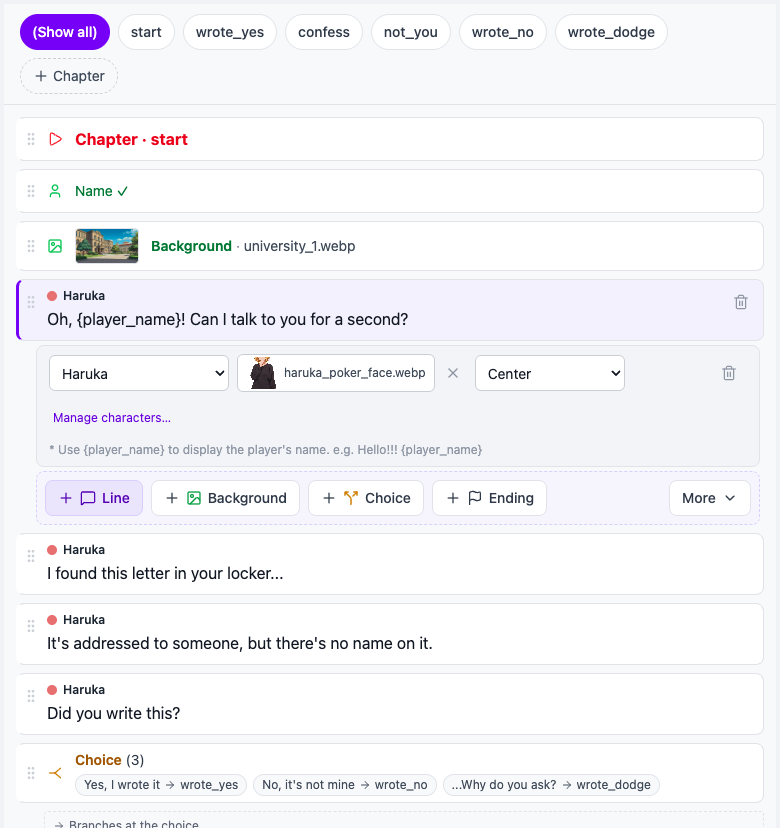
The game starts with the background, music, and on-screen characters carried over from the lines before it. Characters that appeared through dialogue are counted too, not only those added with a Show character block.
Thanks to this, you never have to replay from the beginning just to check a late-game scene or a branch after a choice. You can zero in on exactly the part you edited, which is a huge boost to iteration speed.
If you want to see the title screen too, click [Play] in the header, no matter which line is selected.
The Preview on the Stage
Even without starting playback, the Stage on the right of the editor shows how the currently selected line looks in the actual game. The bar under it reads "Stage · shows the selected line," and it only follows the path the story actually takes to reach the selected line, so backgrounds from other branches do not linger. If the selected line is a chapter title line, or nothing before it has set a background or a dialogue yet, the Stage previews the next background in the same chapter, and if there are no Background lines at all it shows "No background yet."
Backgrounds and character images update instantly, so most visual checks for individual lines can be done right there. Because it is view-only, you cannot click choices to move forward.
The bar under the Stage also has [Prev] and [Next], which move the selection through the script in order so you can step through scenes one by one. When you are viewing a single chapter, the chapter filter follows along.
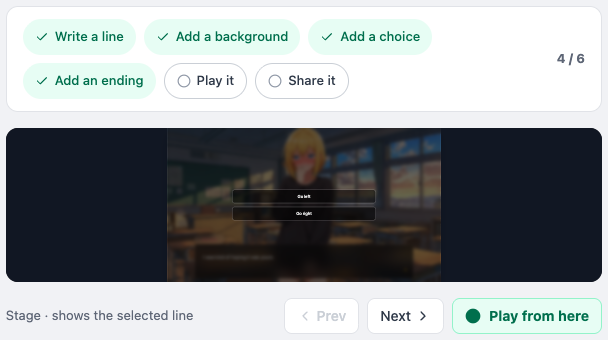
In short, the most efficient workflow is:
- The Stage — For checking the visual result of a single line (step through with [Prev] / [Next])
- [Play] / [● Play from here] — For checking flow and timing across multiple lines
Next Steps
The next page gathers testing strategies and tips for making the most of playback.