Managing Characters
Managing Characters
The Characters window lets you register the people who will appear in your game ahead of time. Characters you register here are reused across Dialogue lines and Show character / Hide character blocks in the Script column.
Opening the Characters Window
There are four ways to open the Characters window. All of them open the same window.
- On the Characters card in the Stage column on the right, click a character row, [+ Add], or [Edit characters]. Each row shows a color dot, the name, and how many lines that character speaks.
- In the Script column, select a dialogue line and click the [Manage characters…] link in the details under the line.
- Open the header's [⋯ More] menu and choose Characters.
- In the Game settings panel, click [Edit characters] under Characters. The current number of registered characters is shown next to it.
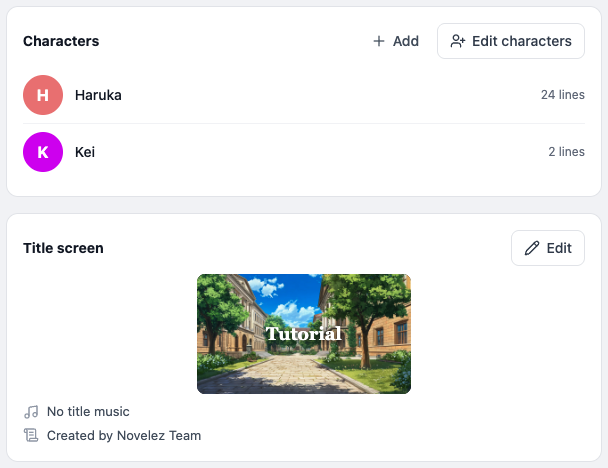
While only the default character (Eileen) exists, the card shows a "Give your character a face and a name — click to edit." prompt — just click it to set the name and face. There is no separate Characters button in the header.
Adding a Character
Use the Add New Character area at the top of the window to register a new character.
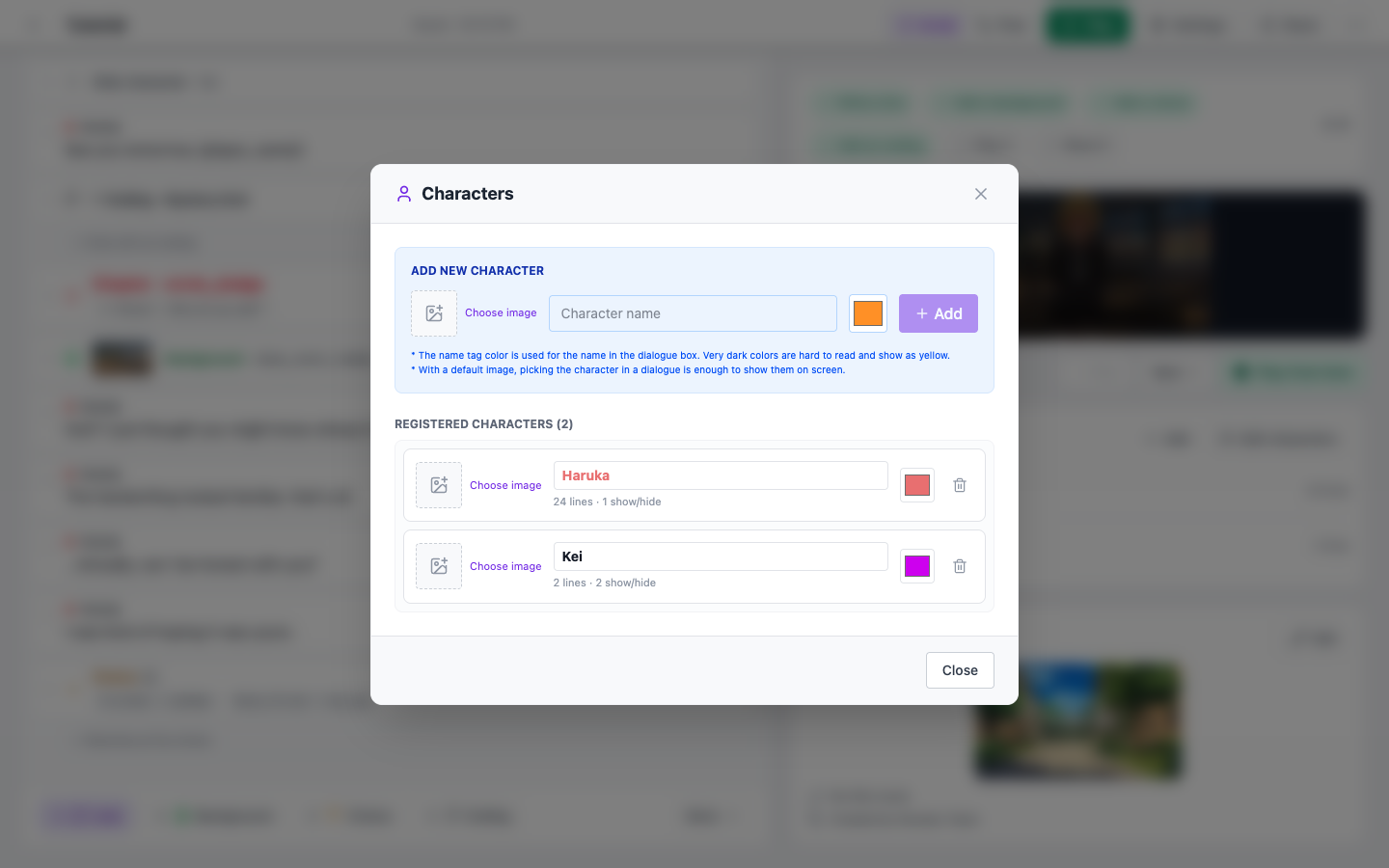
- Name: Enter the character's name. It is shown as the name tag in the game's dialogue box.
- Name tag color: Pick a color for the character. The character's name appears in this color in the game's dialogue box. Very dark colors are hard to read and show as yellow.
- Default image: (Optional) Click [Choose image] and pick one from the asset picker. With a default image, you don't need to pick an image in the Show character block, and simply choosing the character in a Dialogue block is enough to show them on screen.
- Click Add to register the character.
Managing the Character List
Registered characters appear in the Registered Characters list at the bottom of the window. For each character you can:
- Rename — Edit the name directly in the list. Existing dialogue and show/hide blocks pick up the new name automatically.
- Change name tag color — Click the color button to reassign the color at any time.
- Change default image — Use [Choose image] to pick another image, or Remove image to clear it.
- Check usage — Each character shows where it is used, such as "12 lines · 3 show/hide". Characters not used anywhere show "Not used yet".
- Delete — Remove characters you no longer need. The confirmation tells you how many lines use the character; after deleting, those lines become narration without a name, and its show/hide blocks have no effect.
Design Tips
- Register your main cast first — It makes writing your story much faster.
- Use clearly distinct colors — Similar tones can make it hard to tell speakers apart in the dialogue box.
- Use a neutral front-facing image as the default — If certain scenes need different poses or expressions, you can specify them directly in the Show character block.
A Note About Your Content
Please upload only character artwork for which you have usage rights. If you use free assets with limited commercial rights, or AI-generated images, be sure to verify the license conditions. Using the likeness of a real person without their permission can also cause issues and should be avoided.
Next Steps
With your cast registered, only one item is left in the Game settings panel — the credits.