Game Settings Overview
Game Settings Overview
The Game settings panel is where you manage the information that forms the backbone of your game. Common elements such as the title, category, title screen, characters, and credits live here, so that they can be referenced naturally while you write your story.
Game settings is not a separate tab — it is a panel that slides in from the right side of the editor. You can open and close it without leaving your script, so you can set the title or title screen at any point while you write.
Opening the Game Settings Panel
There are three ways to open the panel:
- Click the [Settings] button in the header. Its hint reads "Game settings: title screen, music, credits".
- Click [Edit] on the Title screen card in the Stage column on the right. The panel opens at the title background field.
- Open the header's [⋯ More] menu and choose Game settings.

To close the panel, click the X, press Esc, or click outside the panel.
Shortcuts in the Stage Column
The Stage column on the right has two cards that lead straight to your game settings:
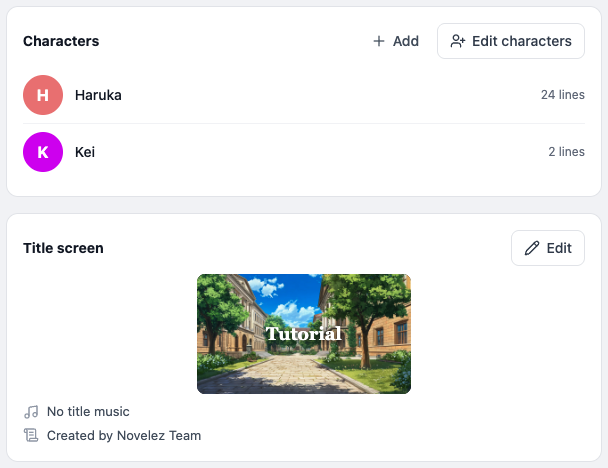
- Characters card — Click [+ Add], [Edit characters], or any character row to open the Characters window.
- Title screen card — Summarizes the title background thumbnail, the title music, and the first line of your credits. [Edit] opens the Game settings panel.
Section Order
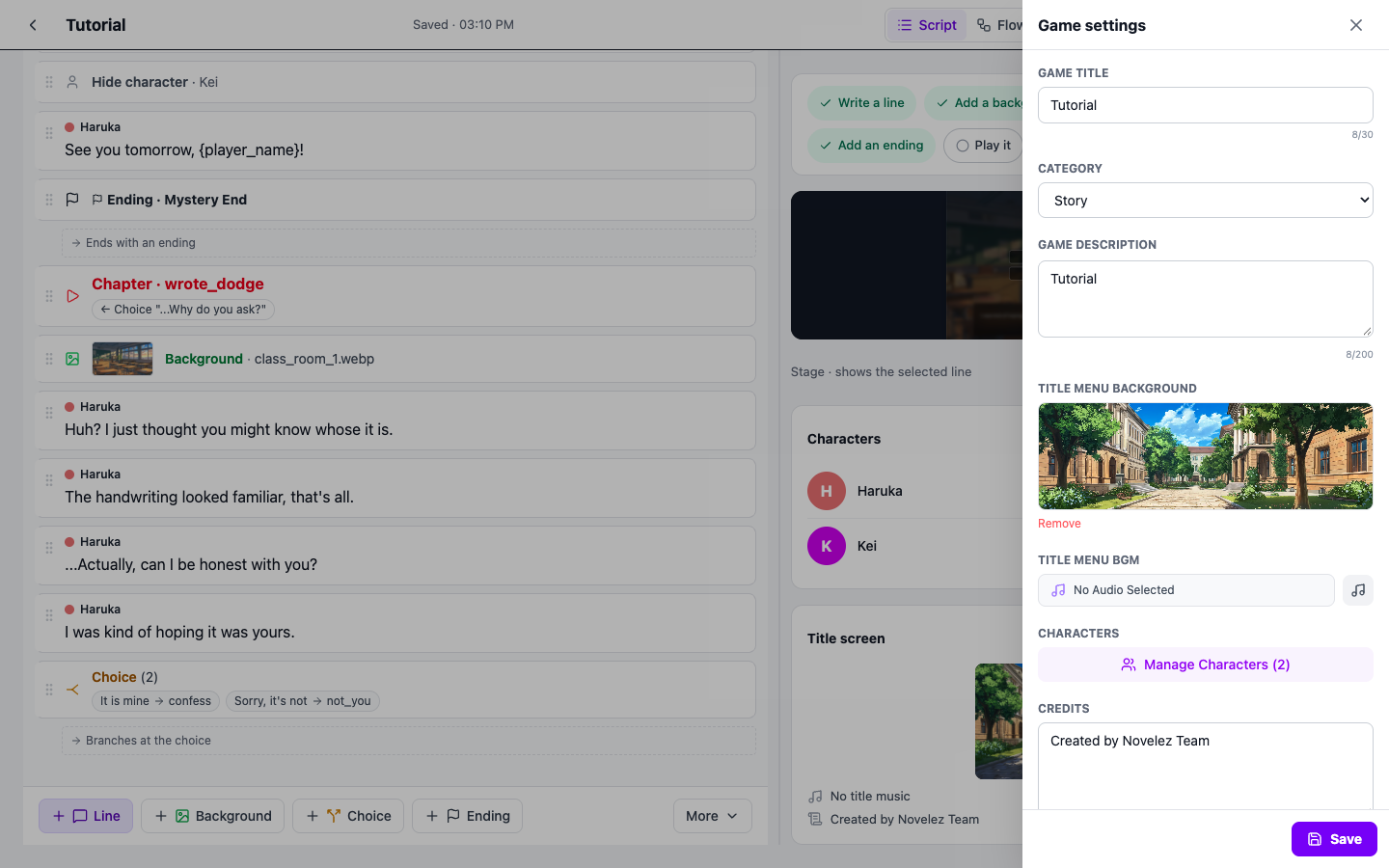
The Game settings panel is organized in the following order:
- Title
- Category
- Description
- Title Background Image
- Title Background Music
- Characters
- Credits
Projects already flagged as 18+ also show an 18+ Content item at the top.
How Saving Works
Values you change in the Game settings panel take effect immediately and are saved automatically. The editor saves about 3 seconds after you stop typing, and everything is saved right away when you leave the editor. If you try to close or reload the window while there are unsaved changes, the browser asks you to confirm.
If you want to save immediately, press the [Save] button at the bottom of the panel. The button shows that it is saving and then confirms the save. There is no manual save button in the header; the save status ("Saving…", "Saved · 14:32", or "Waiting to save…") is shown next to the title field in the header.
You can change the game title in the panel, or directly in the title field in the header.
Next Steps
The next page covers the publishing policy that defines how your game can be shared.