Designing the Title Screen
Designing the Title Screen
The title screen is the very first thing players see when they launch your game. The background image and music you set here define the first impression of your game, so choose materials that match the mood you want to convey.
The Title Screen Card on the Right
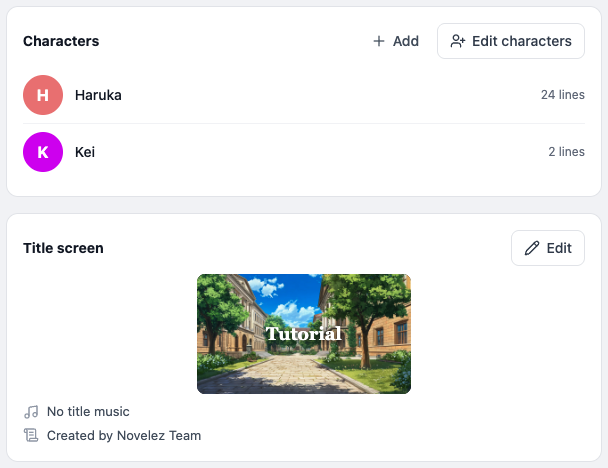
At the bottom of the Stage column on the right of the editor, the Title screen card shows how your title screen is currently set up at a glance.
- Title background thumbnail — Your game title is overlaid on it. If you have not chosen an image yet, it shows "No title image yet".
- Title music — Shows "No title music", or the file name if you have chosen one.
- Credits — Shows "No credits yet", or the first line if you have written some.
Click [Edit] on the card and the Game settings panel opens right at the title background field. You can also open the panel with the [Settings] button in the header and find the Title Background Image field yourself.
Title Background Image
Sets the image used as the background of the title screen.
Selecting an Image
- In the Title Background Image field of the Game settings panel, click [Select Background].
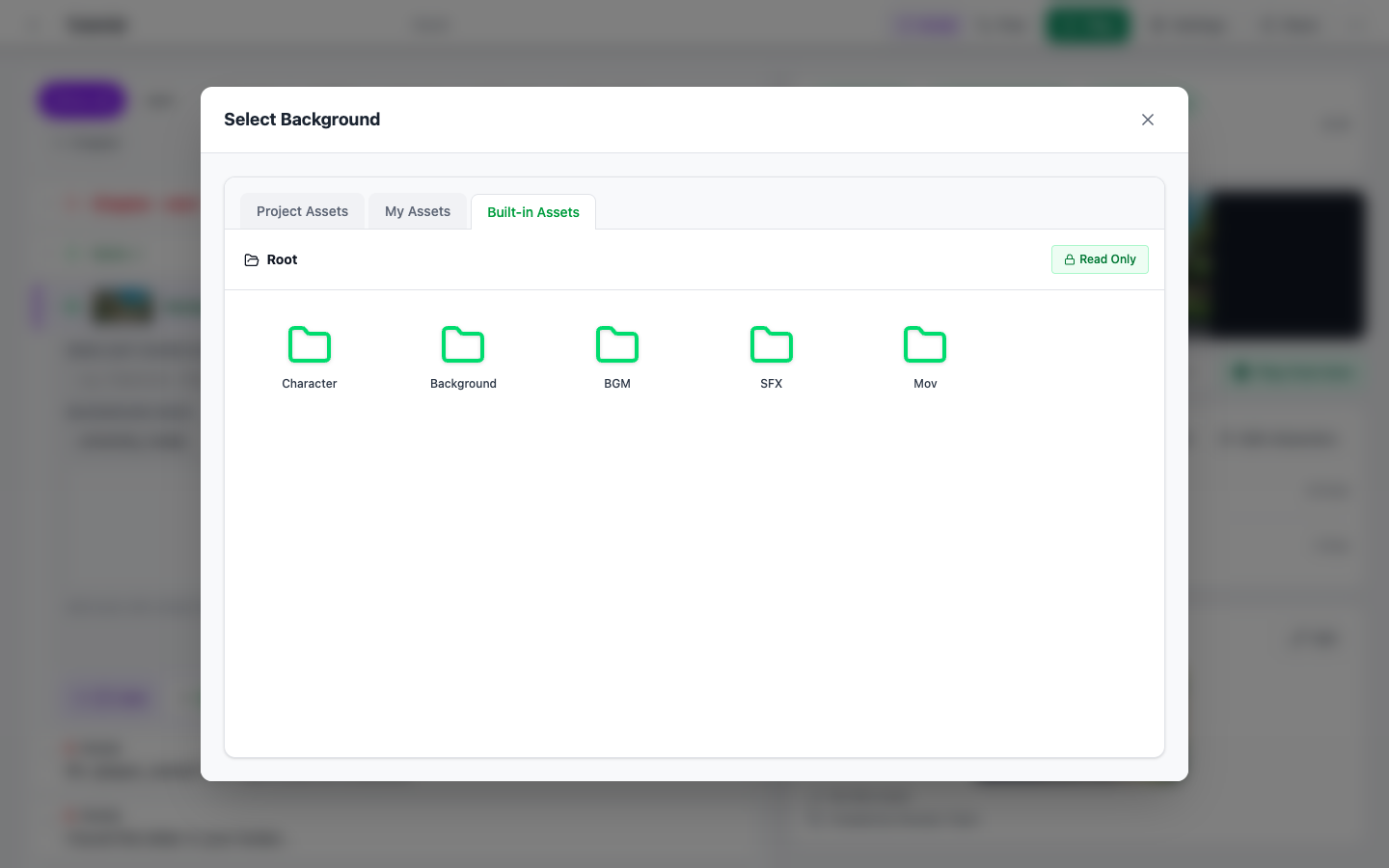
- The asset picker opens — choose an image from the Project assets, My assets, or Built-in Assets tab. If you have not uploaded any files yet, it opens on the Built-in Assets tab, and it remembers the last tab you used. A folder opens with a single click.
- Click an image card and it is applied right away, with a thumbnail shown in the panel.
Replacing and Removing
- Replace: After choosing an image, use [Change], which appears next to the thumbnail, to reopen the picker and choose a different image.
- Remove: Use [Remove] next to it to clear the selection.
Recommendations
- Wide images (16:9 ratio recommended) fit the title screen best.
- Use WebP format for faster loading during web play.
- Backgrounds that convey the mood of your game work better than overly complex or text-heavy images.
Title Background Music
Sets the music that plays on the title screen.
Selecting Music
- In the Title Background Music field of the Game settings panel, click [Select BGM].
- In the asset picker, choose the audio file you want.
- The file name is displayed after selection, and you can clear it with [Remove]. The Game settings panel has no listen/preview button — it only lets you select or remove the track; to listen to it, use the asset picker.
Recommendations
- The track loops on the title screen, so pick something that does not grow tiring on repeat.
- At comparable quality, OGG is smaller than MP3 and loads faster.
- Very large files can slow down game startup — avoid unnecessarily high-bitrate files.
A Note About Your Content
Images and music used as your title assets should be material you own the rights to, or material you have permission to use. Built-in assets can be used freely within Novelez's scope, but for anything you download from elsewhere, please double-check the license. Copyright violations may lead to the project being excluded from public listings or having its content removed.
Next Steps
With the title screen ready, the next step is to register the characters that will appear in your game.