Adding and Editing Blocks
Adding and Editing Blocks
Stories are built one block at a time. Each block represents a single unit of action — dialogue, a background change, a character appearance — and in the Script column each one appears as a "line". Add a line, fill in its content, and the Stage on the right reflects it right away.
Adding a Block
Use the insert bar ("Add a block") in the Script column to add a new block. It appears right under the details of the selected line.
- Click the line where you want the new block to appear.
- Press the button you want on the insert bar. The common ones — [+ Line], [Background], [Choice], [Ending] — are always visible; the rest (Music · Sound · Stop music · Show character · Hide character · Chapter · Go to chapter · Player info · Variable · Condition) are inside [More ▾].
- The new block is inserted immediately after the selected line.
![The insert bar and the [More ▾] list](https://imkmwjonxflxepctcmuv.supabase.co/storage/v1/object/public/asset/manual/e447d720-2629-40d3-9f4b-1480eb5eb176/v2_insert-more.en.png)
If no line is selected, the new block is appended to the end of the visible list. The insert bar is pinned to the bottom of the list only when no visible line is selected, and the same applies when you are filtering to one chapter and nothing in that chapter is selected. The Chapter block follows the same rule and is inserted right after the selected line. This makes it easy to insert new content in the middle of your story without dragging. Only one Player info block is allowed per game, so it appears disabled once one exists.
The game plays from the top block of the list, and a chapter with no Ending or Go to chapter at its end continues into the next chapter. After adding blocks, check the line shown at the end of each chapter ("Then → …") to make sure the flow is what you intended.
Writing Dialogue Right in the Line
You do not open a separate editor for dialogue — type directly in the line. A dialogue line has a speaker name tag and a text field ("Type a line · Enter for next line · Shift+Enter for line break").
- Press [+ Line] to create a new dialogue line and type your text in the field.
- Press Enter to create a new dialogue line right below with the same speaker; the cursor moves there.
- Press Shift+Enter to start a new line of text inside the same dialogue line.
- Press Backspace on an empty dialogue line to delete it and select the line above. If the line above is a dialogue line, the cursor lands at its end. On the very first line nothing is deleted.
A new dialogue line takes the speaker of the dialogue right above it (or the first character if there is none). Enter pressed while a Korean character is still being composed is ignored, so you will not create a stray line by accident.
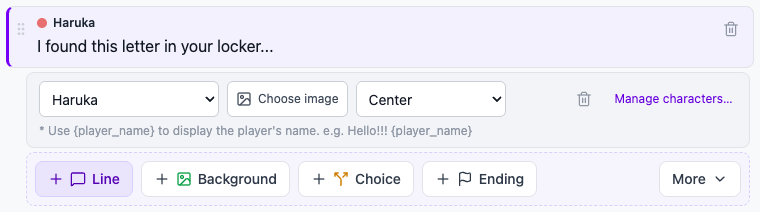
Details Under the Line
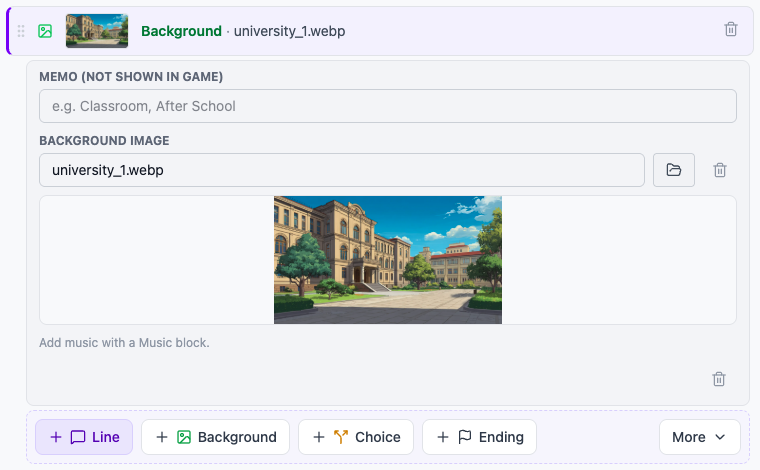
Clicking a non-dialogue line (Background, Choice, Chapter, Ending, and so on) selects it and opens a details strip ("Selected block settings") right below it with the fields you can edit. With the keyboard, focus the line and press Enter or Space. The fields shown depend on the type of block.
For example:
- Dialogue line — Character ((Narration), Player Monologue, or a registered character), [Choose image] (expression image; a thumbnail and × appear once chosen), position (left, center-left, center, center-right, right), a trash icon, and a [Manage characters…] link
- Background line — A memo (not shown in the game) and [Select Background] to choose the background image. The line itself shows a thumbnail and file name, or "Choose an image" until you pick one.
- Show character line — Character, image, position
- Chapter line — A chapter name field. Renaming it updates every Choice, Condition, and Go to chapter that points to it. When renaming, edit the characters in place rather than clearing the whole name first — if the name passes through an empty value, the choices, conditions, and Go to chapter blocks pointing at it are not updated.
- Choice line — The option list under "Manage choices", with the chapter each option goes to
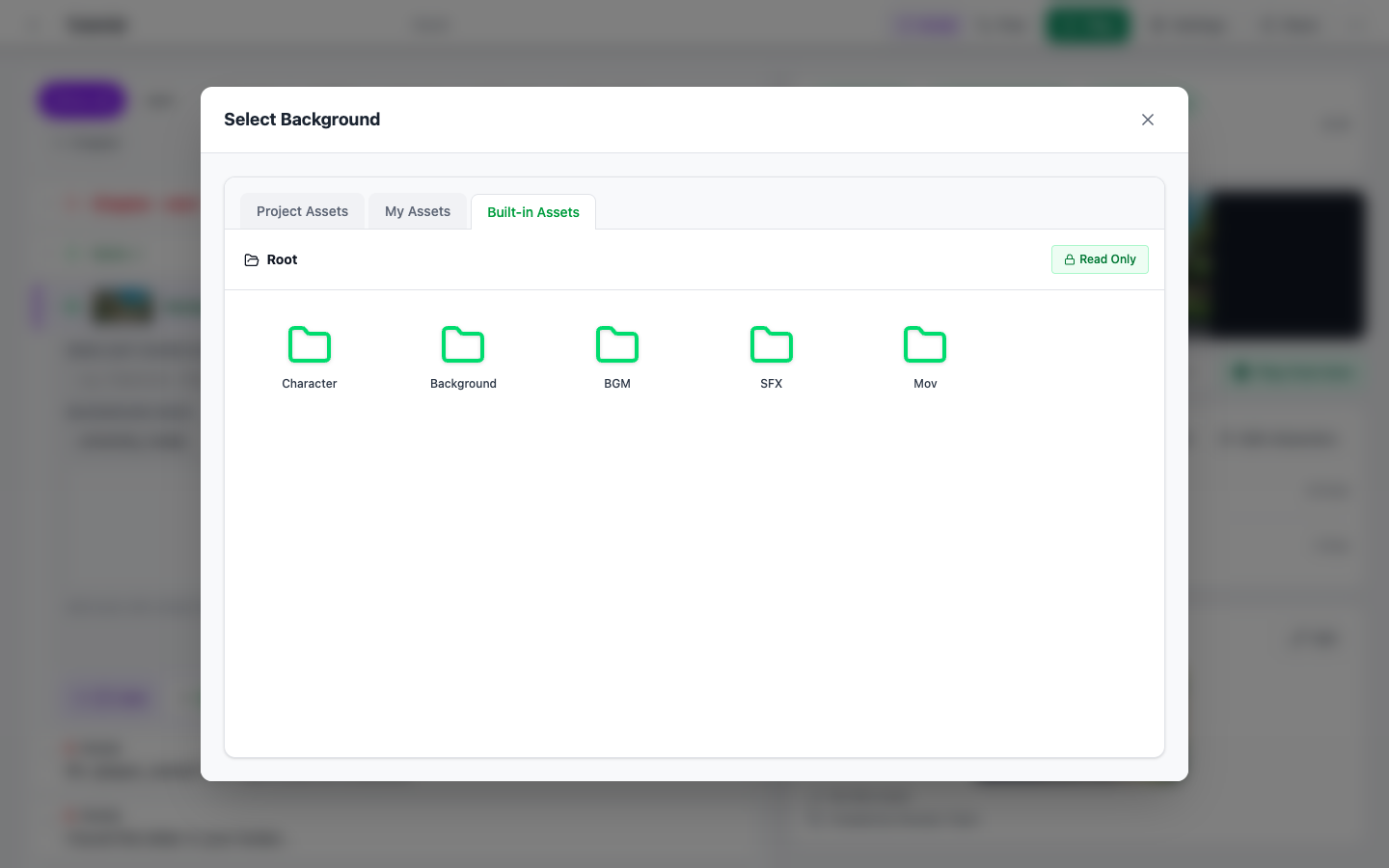
Files Come From the Picker
File fields such as images and music cannot be typed in directly. Press a button like [Choose image] to open the asset picker and pick a file there. Its tabs are Project assets · My assets · Built-in Assets, and if you have not uploaded anything yet it opens on Built-in Assets first. Click a file card and it is used right away. Each block type's full set of properties is covered one by one in the Block Reference chapter.
Deleting a Block
There are two ways to delete a block:
- Hover over the line and click the trash icon that appears at its right (tooltip: "Delete (undo with Ctrl+Z)").
- Select the line and click the trash icon in its details strip.
Either way the block is deleted right away, without a confirmation dialog. If you delete something by mistake, press Ctrl+Z outside a text field, or choose Undo in the header's [⋯ More] menu; Ctrl+Shift+Z redoes it. An empty dialogue line can also be removed with Backspace, as described above.
Instant Reflection of Edits
Anything you type in a line or change in the details is applied to the story immediately, and the Stage on the right updates at the same time. There is no separate "Apply" button — you can see the results of your edits instantly, and your work is saved automatically a few seconds after you stop typing. The save status is shown next to the title in the header.
Next Steps
Once you are comfortable adding and editing blocks, let us look at how to reorder them.