Reordering Blocks
Reordering Blocks
As you polish your story, you will often need to change the order of blocks. Novelez supports simple drag-and-drop for reordering.
Drag and Drop
Each line in the Script column has a drag handle (a six-dot icon) on its left side. Press this handle and drag the block to move it to a new position.
- Press the drag handle of the line you want to move.
- Drag to the desired position.
- Release the mouse and the block moves into place.
While dragging, nearby lines shift naturally to show you where the block will land. If you drop it in the wrong place, Ctrl+Z (outside a text field) takes you straight back, and Ctrl+Shift+Z redoes it. Undo / Redo in the header's [⋯ More] menu does the same.
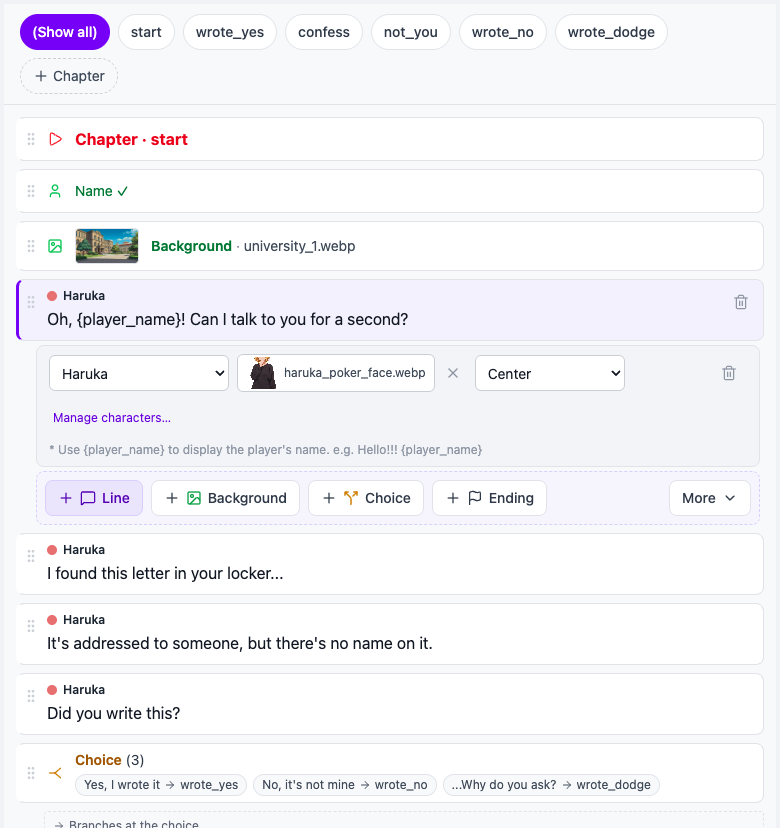
Any Block Can Be Moved
Not only general blocks like Dialogue or Show character, but also blocks such as Chapter, Background, and Ending can be moved the same way. Keep in mind that the game plays in list order and a chapter with no Ending or Go to chapter at its end continues into the next chapter, so reordering blocks can change your story flow. After moving blocks — especially around chapters and choice branches — check the line shown at the end of each chapter ("Then → …") and make sure no red warning appears.
Duplication
Novelez does not currently provide a block duplication feature. If you need several similar blocks, add new lines and type their contents again. For dialogue, pressing Enter at the end of a line to keep writing with the same speaker is the quickest way.
Tips
- Moving inside long lists: Making a small distinctive edit on the block beforehand helps you quickly verify its new position after dragging.
- Relocating large sections: If you need to move many blocks at once, it is often easier to group the section into a Chapter and then change which chapter your Choices or Go to chapter blocks point to in order to rearrange the flow. This approach is covered in the "Building Story Structure" page.
- Play it right away: Get into the habit of selecting the line and using [● Play from here] under the Stage right after moving blocks, so mistakes are caught early.
Next Steps
Once you are comfortable moving blocks around, let us look at the differences between Script View and Flow View.