Script Overview
Script Overview
When you open the editor, the area under the header is split into two columns. The Script column on the left is where you write your story, and the Stage column on the right shows you right away how the selected line looks in the game. Stack dialogue, backgrounds, choices, and more from top to bottom in the Script column and you have a complete narrative. There are no tabs to switch between — game-wide options live in the Game settings panel, which opens from the [Settings] button in the header.
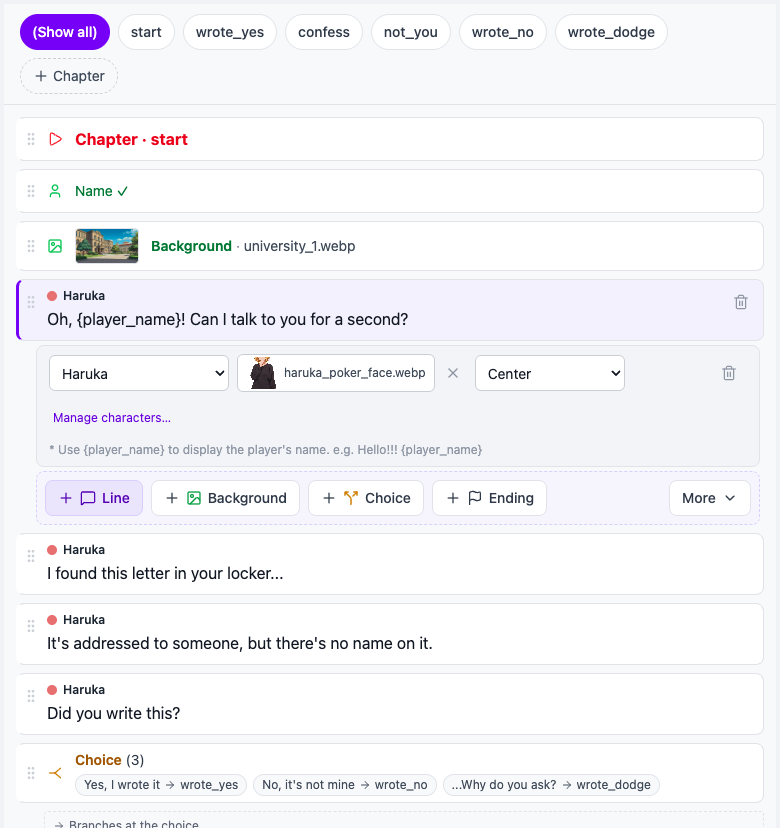
Script Column Layout
From top to bottom, the Script column has four parts.
- Chapter pills row — Appears at the top once there are two or more chapters. It holds [(Show all)], one pill per chapter, and [+ Chapter]. Click a pill to show only that chapter's lines; click [(Show all)] to see every line again. With only one chapter, just [+ Chapter] sits at the right end.
- Line (block) list — Your story's blocks, one line each, from top to bottom. Each line has a drag handle (six dots) on its left and a trash icon that appears at the right when you hover. Dialogue lines are typed directly in the line.
- Details under the line — Click any non-dialogue line (Background, Choice, Chapter, Ending, and so on) and a details strip opens right below it for editing. Selecting a dialogue line opens its details too, where you pick the character, expression image, and position.
- Insert bar ("Add a block") — The row of buttons for adding new blocks: the four most common blocks plus [More ▾].
- [+ Line], [Background], [Choice], [Ending]
- Inside [More ▾]: Music · Sound · Stop music · Show character · Hide character · Chapter · Go to chapter · Player info · Variable · Condition
![The insert bar with [More ▾] expanded](https://imkmwjonxflxepctcmuv.supabase.co/storage/v1/object/public/asset/manual/e447d720-2629-40d3-9f4b-1480eb5eb176/v2_insert-more.en.png)
Only one Player info block is allowed per game, so it appears disabled in [More] once it exists. If the list is empty, you see "Your story is empty" / "Add your first line and the stage on the right fills in." and a [+ Line] button to add the first line. If you delete or change something by mistake, press Ctrl+Z outside a text field (and Ctrl+Shift+Z to redo), or use Undo / Redo in the header's [⋯ More] menu.
The Order the Game Plays In
The game plays from the top block of the list. A Chapter block is only a name tag, so if a chapter has no Ending or Go to chapter at its end, play simply continues into the next chapter in the list.
At the end of each chapter in the list, a dashed one-line box shows where play goes next ("Ends with an ending", "Then → go to chapter 'x'", and so on). If a branch created by a choice runs into another, unchosen branch, a red warning appears with an [Add Go to chapter] button — press it and pick the chapter the branch should rejoin. When any such place exists, a red banner ("N place(s) where an unchosen branch plays next.") appears above the list, and [Show first] jumps to the first one.
Variables and Conditions
Variable and Condition are the blocks for more complex logic such as quizzes, affection systems, and multiple endings. There is nothing to switch on first — they are always inside [More ▾] on the insert bar.
- Variable — Stores or updates values inside the game
- Condition — Branches the story based on variable values
Simple visual novels do not need them, so reach for them only when you need them. Details are covered in the "Advanced Features" chapter.
Script View and Flow View
You can see the same story in two ways. Use the [Script | Flow] switcher in the header (or Flow view / Script view in the [⋯ More] menu) to change at any time.
- Script view — Lines listed top to bottom in order. Best for day-to-day authoring.
- Flow view — A graph that shows chapters as nodes and choices, conditions, and Go to chapter blocks as connecting lines. Useful for grasping complex story structures at a glance.
The differences between the two views are described in more detail in the "Script View and Flow View" page.
Next Steps
Now that you have a big-picture view of the Script column, let us look at how to actually add and edit blocks.