Testing While You Write
Testing While You Write
Playing through your story as you write lets you quickly catch awkward pacing or staging issues. Novelez offers several conveniences that let you launch the game without leaving the editor.
Running the Game
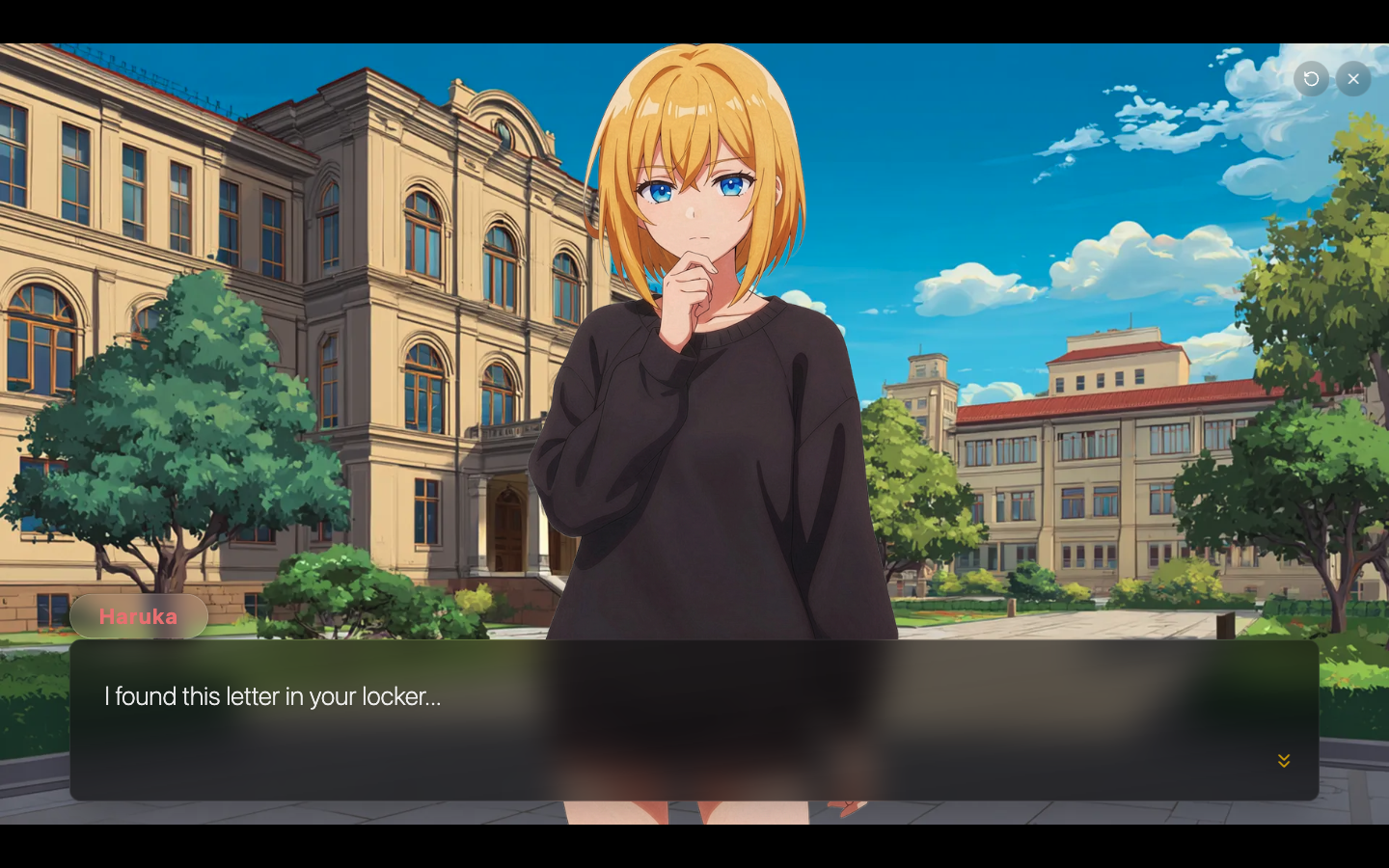
Click the green [Play] button in the top header to play your current story as a real game screen, starting from the title screen. You see the exact same interface your players will see, so you can verify dialogue pacing and visual staging directly.
Starting from the Selected Block
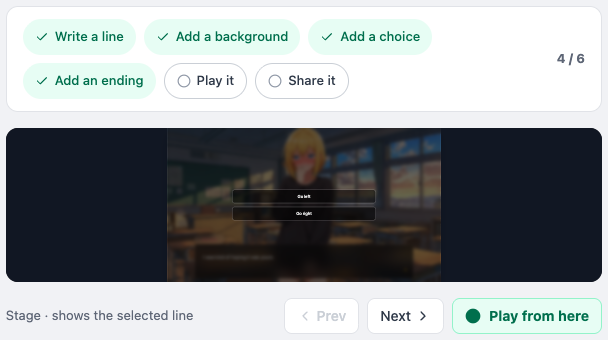
The most powerful part is [● Play from here], which starts from the line you have selected.
- In the Script column, click the line where you want to start testing. You can also step the selection one line at a time with [Prev] / [Next] in the bar under the Stage.
- Click [● Play from here] in the bar under the Stage on the right.
- The game begins from that line. The background, music, and characters from earlier blocks (including characters that appeared through dialogue) carry over. If the selected line is a Background or Ending line, those blocks are not executed as the starting point, so play starts from the next line instead.
This is enormously useful for testing late-game scenes or specific branches after a choice. Instead of replaying from the beginning each time, you can jump straight to the part you just edited. To see the game from the title screen, use [Play] in the header instead.
The Preview on the Stage
Even without starting playback, the Stage on the right of the editor shows how the currently selected line looks in the actual game ("Stage · shows the selected line"). The Stage works out the flow the story takes from the beginning up to the selected line, then draws the background, characters, and dialogue box — so a background from another branch never lingers. If the selected line is a chapter title line, or nothing before it has set a background or a dialogue yet, the Stage previews the next background in the same chapter, and if there is no Background line at all it says "No background yet". Changing a background or swapping a character image is reflected on the Stage immediately, so most visual adjustments can be verified without playing at all. Because it is view-only, you cannot click choices to move forward.
Use the play buttons to check flow and timing across multiple blocks, and use the Stage to check the visual result of individual lines.
Auto-Save
When you add or delete lines or edit dialogue and details, your work is saved automatically 3 seconds after you stop typing. Values changed in the Game settings panel are applied immediately and saved too, and the editor also saves right away when you leave it. If you try to close or refresh the window while there are unsaved changes, the browser will ask you to confirm.
The save status appears next to the title in the header — "Saving…", "Saved · 14:32" (the time varies), or "Waiting to save…" — so after an important change, check that it shows as saved. There is no manual save button in the header; the only [Save] button is at the bottom of the Game settings panel. If you delete a block or change something by mistake, press Ctrl+Z outside a text field to undo, and Ctrl+Shift+Z to redo. Undo / Redo in the header's [⋯ More] menu does the same.
Workflow Tips
- Test in short cycles — Use [● Play from here] as soon as you finish a scene, so problems are caught while they are still small.
- Test right after branching — After creating a Choice, walk through each branch to confirm they connect as intended. An orange or red note at the end of a chapter means the flow may not be what you intended.
- Undo mistakes — Deleting a block happens without a confirmation dialog, so if you remove one by accident, press Ctrl+Z right away.
- Rotate views — Polish details in Script view, check structure in Flow view, and verify real play feel by playing — rotating through all three is the most reliable workflow.
End of Chapter
That concludes the Script Editing chapter. The next chapter is the Block Reference, which goes through each block type's properties and usage one by one.