Script View and Flow View
Script View and Flow View
Novelez offers two views of the same story: Script view and Flow view. You can switch between them freely using the [Script | Flow] switcher in the header (Flow view / Script view in the [⋯ More] menu does the same). Since both views display the same underlying data from different angles, the content does not change depending on which view you use.
![The [Script | Flow] switcher in the header](https://imkmwjonxflxepctcmuv.supabase.co/storage/v1/object/public/asset/manual/e447d720-2629-40d3-9f4b-1480eb5eb176/v2_header.en.png)
Script View
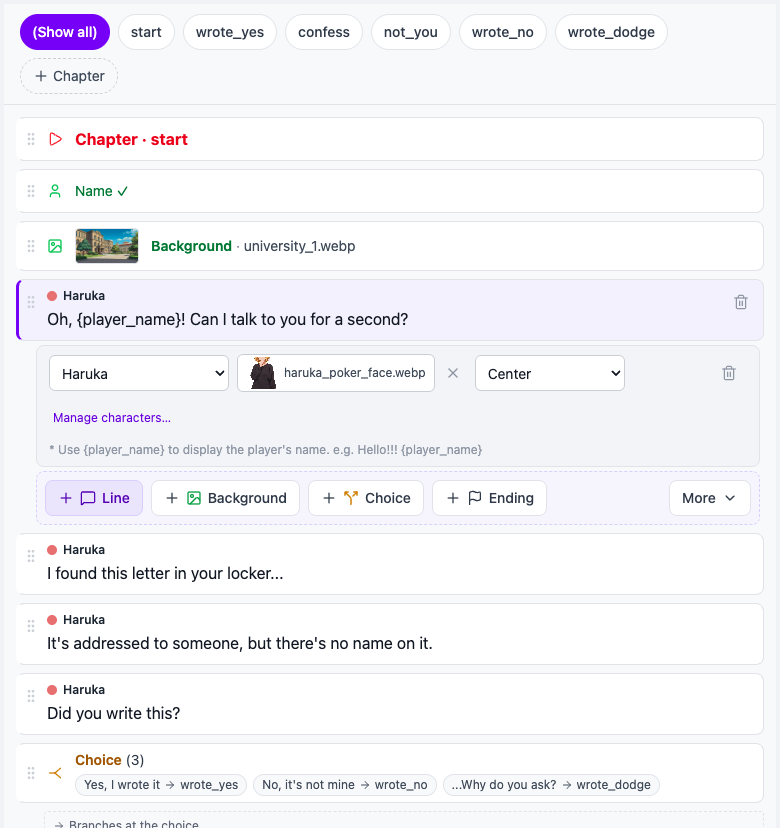
A view that lists lines from top to bottom in order. It is the default screen — the Script column on the left and the Stage on the right — and it is where most authoring work happens.
- Add and delete lines, and edit them in the details under the line (dialogue is typed right in the line)
- Drag the drag handle to reorder lines
- Show only one chapter with the chapter pills at the top (return with [(Show all)])
- See where each chapter goes next from the line at its end ("Then → …")
Script view's strength is that it matches sequential thinking. It is easy to read through the story from beginning to end and intuitive for layering dialogue and staging step by step. If this is your first story, Script view alone is enough.
Flow View
A graph view that shows chapters as nodes and branches and moves as connecting lines. You can drag nodes around and zoom in and out, and each chapter node also shows a preview list of the blocks it contains. If the nodes get tangled, the [Auto Arrange] button lays them out again. It overwrites any positions you moved by hand, so you are asked to confirm first.
- Choice blocks draw an arrow from each individual option to its destination chapter.
- Condition branches and Go to chapter blocks are also shown as arrows to the target chapter.
- Endings appear as separate nodes next to their chapter.
- Where a chapter has no Ending or Go to chapter at its end and runs on into the next chapter, a dashed "continues" line is drawn — in red, labelled "continues (unchosen branch!)", if it runs into an unchosen branch. You cannot delete this line; to cut it, add a Go to chapter or an Ending at the end of the chapter.
- No line is drawn when the destination chapter does not exist. Such missing destinations show up in Script view as red option chips and the "N option(s) point to a missing chapter" warning.
Flow view's strength is that it gives you a bird's-eye view of your story structure. For branching stories, you can see "where does this choice lead?" at a glance.
Moving Between Flow View and Script View
- Double-click a node to go back to Script view filtered to that chapter, so you can move from a structural overview into a specific chapter quickly.
- On the right side of Flow view there is the block settings panel for the selected block. You can check or change its content there, and the [Back to script] button returns you to Script view.
- Pressing [Script] in the header's [Script | Flow] switcher also takes you back.
Editing Structure in Flow View
Flow view is not just for reading — drawing a new connection actually rewrites the story flow.
- In Flow view, drag a new connection from the output handle of the chapter node whose destination you want to change onto the target chapter node. You cannot grab an existing line and move it; you set the new destination by drawing a new connection.
- The destination of the connection changes to the new chapter, and the change is immediately reflected in the underlying block properties.
- Switch back to Script view and open the corresponding line, and you will see its Go to chapter updated to the new target.
Because of this, Flow view is often the fastest and most intuitive way to restructure complex branches. Rerouting multiple endings or adjusting where choices lead is much quicker here than opening each line one by one in Script view.
Which View to Use
| Situation | Recommended View |
|---|---|
| Day-to-day dialogue writing and staging | Script |
| Detailed editing of a block's content | Script |
| Reviewing the overall story structure | Flow |
| Rerouting where choice branches land | Flow |
| Designing routes for a multi-ending game | Flow |
Good to Know
After adjusting connections in Flow view, it is a good idea to verify the result with the chapter-end lines in Script view or with [● Play from here] under the Stage. Changing one connection can shift the flow of paths that previously worked as expected, so a quick check makes it easier to catch mistakes early. Also, fine-grained edits — dialogue text, images, and so on — are easier to handle by typing directly in the line, so switch back to Script view when you need to polish individual blocks.
Next Steps
Now that you understand the difference between the two views, let us see how to design story structure using Chapters and Choices.