Share Link
Share Link
A share link creates a URL anyone with a browser can open to play your game immediately. It is the one way to show your work to others on Novelez, perfect for sharing with beta testers or on social media.
Creating a Share Link
- Click the [Share] button in the editor's header.
- A confirmation explains that sharing creates a share link and that anyone who receives the link can play your game.
- Confirm, and the share link is created, shown on screen, and copied to your clipboard. The button changes to [Shared].

Share Requirements
Sharing a link requires at least 5 lines of dialogue, plus a choice (with 2 or more options) or at least one ending. If your project falls short, a message such as "Not ready to share yet: N/5 lines, N/1 choice or ending. Keep going from "Story progress" on the right." shows your current counts — add a bit more story and try again.
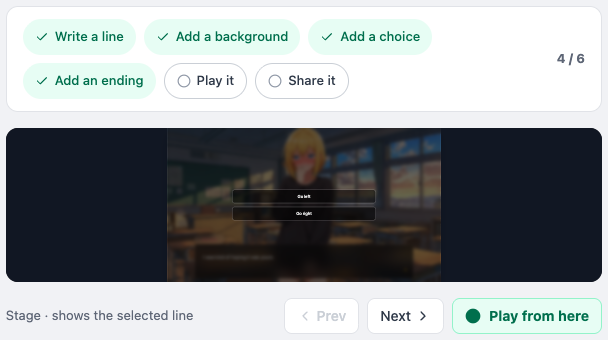
The Story progress card at the top of the Stage column on the right tracks your progress. Its six chips — Write a line, Add a background, Add a choice, Add an ending, Play it, Share it — get a green check when done, and clicking an unfinished chip starts that task right away.
The Tutorial project is learning-only and cannot be shared.
Link Format
Share links look like:
https://novelez.com/play/PROJECT_ID
Copy this and send it to anyone. For a project that is already shared, click [Shared] to open a dialog with the link and a Copy button, so you can copy it again at any time.
What Players See
Anyone who opens the share link enters the game screen immediately, without signing in. There is no landing or intro page — they go straight to the title screen and can start playing from there.
Only People with the Link Can Play
The Novelez gallery is private to protect creators' copyright, so your work can be shown only through share links. Shared games are not indexed by search engines, so only people who receive the link directly can play.
Switching Back to Private
To stop sharing, click the [Shared] button and confirm the "Unsharing will make the share link private" dialog.
- Once private, the same link will no longer open the game.
- Sharing again reactivates the same link (the project ID does not change).
Sharing 18+ Content
Since May 2, 2026, projects marked 18+ can't be shared. The [Share] button is disabled; turn off the 18+ toggle and save to share again. The toggle can be turned off only when the project is not in a review state (approved, pending, or rejected projects show a status badge instead of a toggle). See the "Publishing Policy" page for details.
Usage Tips
- Use it for beta testing — Send the link to people you trust and collect feedback. They often find issues you miss.
- Keep editing after sharing — You can keep editing your project after sending the link; changes are auto-saved and reflected on the same link.
- Works on mobile — Share links work fine in mobile browsers, though long stories with large assets can use significant mobile data — something to keep in mind.