Common Issues
Common Issues
Here are the problems users run into most often, along with how to fix them. Look up the symptom and follow the steps.
My Game Starts in the Wrong Place
The first scene is not what I expected
The game always starts from the top block in the list. It starts even without a chapter named start — and even if you do have a start chapter, any blocks above it will play first.
- Fix: In the chapter pills row at the top of the Script column, click [(Show all)] to unfold every line, check which block is at the top of the list, and move the block for your opening scene to the top. (With only one chapter there are no pills and everything is already shown.) To check right away, select a line and click [● Play from here] under the Stage, or click [Play] in the header to start from the title screen.
Playback stays on a black screen
- Checklist:
- Make sure your assets (backgrounds, characters) are uploaded correctly
- Verify the first Background block has a background image assigned
- Check the browser console (F12) for error messages and act on them
A Choice Does Not Go Where I Expect
If an option has no destination chapter, picking it simply continues to the block right after the Choice. If an option points to a chapter that does not exist in the list, you will see a warning like "N option(s) point to a missing chapter".
- Fix: Click the Choice line and the Manage choices details open under it. Check each option's destination chapter and pick a valid chapter from its dropdown for any empty or broken one. If an option needs its own branch, click the yellow [Make branch] button on that option row. It creates a chapter for every option that has none, jumps to the branch of the option you clicked, and puts the cursor in its empty dialogue line. Options that already have a chapter show [Open chapter →] instead, which takes you straight there.
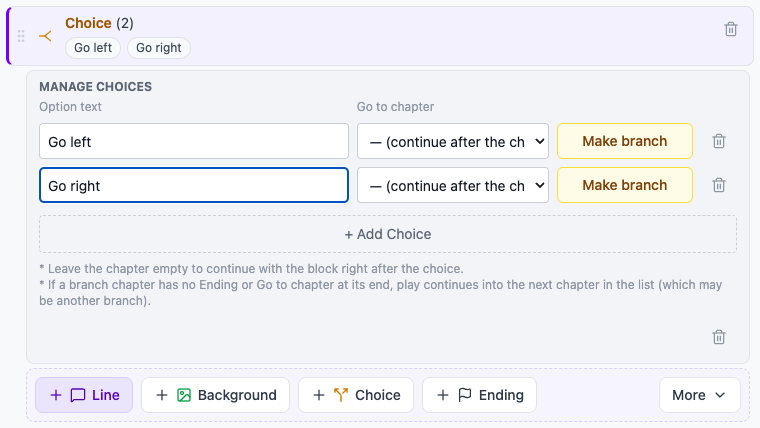
- Use Flow View: Switch to [Flow] in the header — it makes it immediately visible where each choice leads, so it is the fastest way to spot broken connections.
Lines from an Option I Did Not Pick Keep Playing
A Chapter block only marks a place in the story; it does not stop playback. If a chapter does not end with an Ending or a Go to chapter block, playback continues straight into the next chapter in the list. For example, if the first option's chapter has nothing at the end, the second option's lines right below it will play too.
- Check: Each chapter in the Script column ends with a one-line "Then → …" note. Places that run into a branch the player did not pick show a red warning, and a red banner above the list ("N place(s) where an unchosen branch plays next.") shows how many such places there are.
- Fix: Click the [Add Go to chapter] button next to the red warning, or add a Go to chapter block at the end of each branch chapter yourself to send the story to the chapter where the branches meet again. If the game should end on that branch, add an Ending block with [Ending] in the insert bar instead. [Show first] in the red banner above the list jumps to the first such place.

{player_name} Appears Literally in Dialogue
Substitution usually fails for one of three reasons:
- The
player_namevariable has no value (usually because there is no Player info block with name input turned on) — in this case the details under that dialogue line warn that it will be shown as literal text. - Typos in the variable name —
{player_Name}(wrong capitalization) or a misspelling - The Player info block is placed after the dialogue, so the value has not been collected yet
- Fix: Put a Player info block near the start of the game (close to the top of the list) and make sure name input is turned on. Double-check the substitution token in the dialogue for typos.
Asset Uploads Fail
"Storage quota exceeded"
You have hit your account's storage limit.
- Fix: Delete unneeded files from the dashboard Assets page, or convert files to WebP / OGG / WebM to reduce their size.
File format errors
Can happen with unsupported formats, or when you upload an audio format that is not accepted, such as MP3. The audio folders accept OGG/Opus.
- Fix: Check the supported formats list in the "Preparing Assets" chapter and use the conversion tool to convert your files to the recommended formats (WebP / OGG / WebM).
A Character Image Does Not Appear
- Checkpoints:
- The character is registered in the Characters window (open it from the Characters card on the right, or from Characters in the [⋯ More] menu)
- The character's default image, or the expression image on the Show character / Dialogue block, is set
- The asset file being referenced has not been deleted (if it was, pick a new image from the asset picker opened by [Choose image])
My Settings Changes Disappeared
Game settings used to need a separate save, but now values changed in the Game settings panel are saved automatically 3 seconds after you stop typing, just like the script. The editor also saves right away when you leave it.
- If settings still disappear, check your internet connection and login session as described in "Auto-Save Does Not Seem to Be Working" below.
Auto-Save Does Not Seem to Be Working
Novelez saves automatically 3 seconds after you stop typing, and right away when you leave the editor. If auto-save seems broken:
- Check your internet connection — Saves can fail while the network is down.
- Check your login session — In rare cases an expired session blocks saves. Log in again and check that the save status next to the title in the header changes to "Saved · 14:32" (the time varies). To save right away, click the [Save] button at the bottom of the Game settings panel, and before reloading or closing the window make sure no unsaved changes remain.
- Check whether it is the Tutorial project — The Tutorial is learning-only, so changes there are not saved. Click [Make It Mine] in the header to keep working on it.
I Deleted a Block by Mistake
Lines and blocks are deleted immediately, without a confirmation dialog. Press Ctrl+Z outside a text field, or choose Undo from the header's [⋯ More] menu, to bring it back. Press Ctrl+Shift+Z to redo.
About Build Generation
The editor currently has no build menu. To let others play your game, use the Share Link. To keep a copy as files or continue in Ren'Py, use the header's [⋯ More] menu → "Export Ren'Py project (.zip)".
Next Steps
If your issue is not solved, the next page explains how to request support.