Should You Proofread Your Visual Novel as a Text File or by Playing It?
October 28, 2026
You've finished a draft of your visual novel and want to clean up the writing before anyone else plays it. Where you read the script turns out to matter. The same script read as a document and read as a game exposes different mistakes, and if you do only one kind of reading, a whole class of problems slips through.
This post uses what the Novelez documentation says about two features, the plain-text script export and in-editor playback, to sort common mistakes into the ones a text file catches and the ones you only notice by playing. Then it puts the two passes in an order that saves you from rereading the same scene three times.
What's actually in the exported text file?
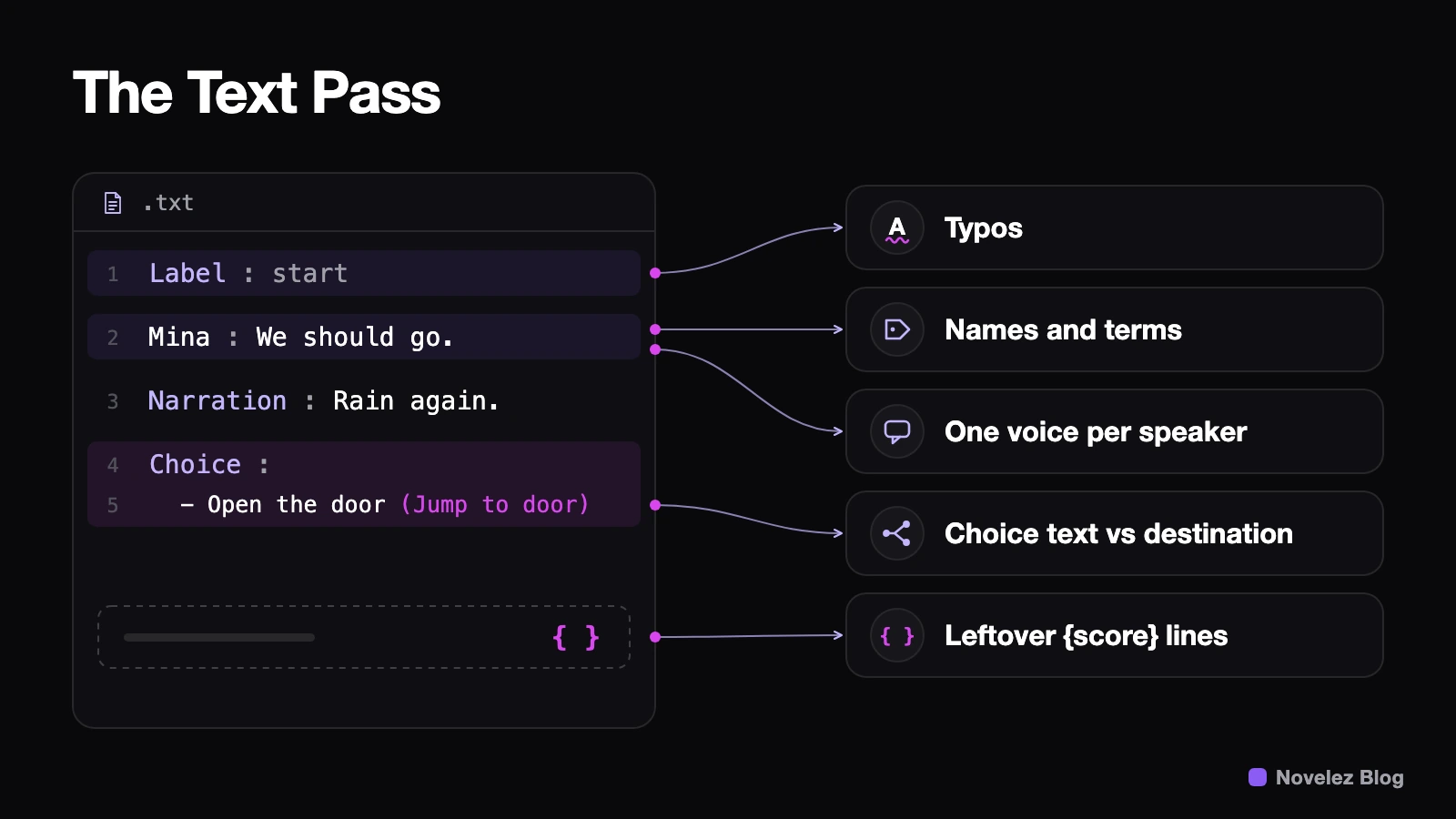
In the Novelez editor, open the More menu at the right end of the header and choose Export as text (.txt). The browser downloads a file named ProjectTitle_script.txt, and the feature is free on every account. The Download as Text page says the file holds the main blocks (chapters, dialogue and choices) in a human-readable layout. Chapters appear as Label, narration as Narration, each line of dialogue as Character Name : text, and each choice option is listed with the chapter it jumps to in parentheses.
Two things follow. Backgrounds, music, character entrances and exits, and variable logic aren't in the documented list, so don't count on the file for reviewing staging. And there's currently no way to import a .txt file back into the editor. Whatever you change in the file stays in the file.
Which mistakes does a text pass catch best?
The docs make a fair point about the Script column: it shows lines one at a time, which makes inconsistencies across a long passage easy to miss, while a text editor gives you a better sense of overall tone. In practice, the text pass is where I'd hunt for these:
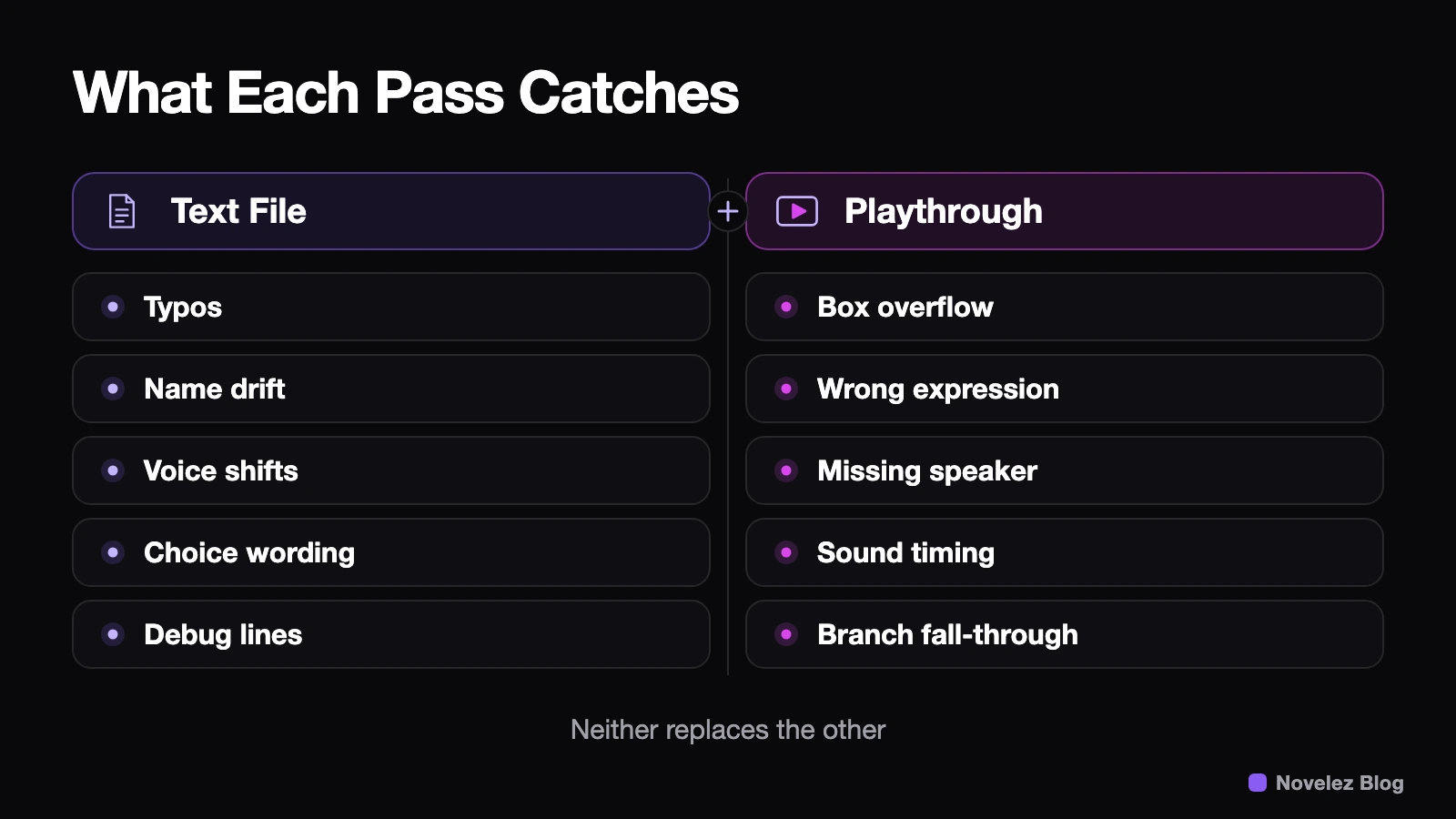
- Typos and spacing, using your word processor's spell checker.
- Drifting names and terms. If a place is "the archive" in chapter two and "the library" in chapter five, one search finds both.
- Voice consistency. Search for a character's name followed by the colon and you get that character's lines in a row. A sudden jump from formal to casual speech stands out at once.
- Choice wording against destinations. Each option sits next to the chapter it leads to, so you can check whether the button text promises the scene the player actually gets.
- Leftover debug lines. The Testing Strategies page suggests temporary lines such as
(debug) score: {score}for checking variables and says to delete them before sharing. Search the file for{and they all turn up. Whatever remains should be a token you meant to keep, like{player_name}.
None of this needs the game screen, so it goes quickly. You can print the file and mark it up with a pen, or hand it to a collaborator who never opens the editor.
Which mistakes only show up when you play?
A text file shows sentences. It can't show how they land on screen. According to the Preview Basics page, playback reproduces character entrance and exit staging, text window typing speed and sound effects, choice branches and chapter jumps, automatic branching from variables and conditions, and ending screens. That's where this second group of mistakes lives:
- Dialogue box overflow. A sentence that looks short in a document can wrap onto several lines in the box. The Dialogue Block page recommends several short blocks over one long one for reading rhythm, and Shift+Enter adds a break inside a line.
- Expression mismatches. An angry line paired with a smiling image is invisible in text. If a dialogue line's image is left blank, whoever is on screen stays as they are, so an expression from the previous beat can carry over without you meaning it to.
- Missing speakers. The Background Block page notes that a background change also clears every character on screen. A character who keeps talking after a location change, without being shown again, is something you'll only catch visually.
- Sound timing. Whether a sound effect fires before or after the line it belongs to has to be heard.
- Branch fall-through. A chapter with no Ending or Go to chapter at its end runs straight into the next chapter in the list. The chapter-end notes in the Script column flag this, and a playthrough confirms it.
For line-by-line visuals the Stage is usually enough. It works out the background, characters and dialogue box along the path the story actually takes to reach the selected line, and the Prev and Next buttons under it step through the script. Anything that unfolds over time, like typing speed or sound, needs real playback.
In what order should you run the two passes?
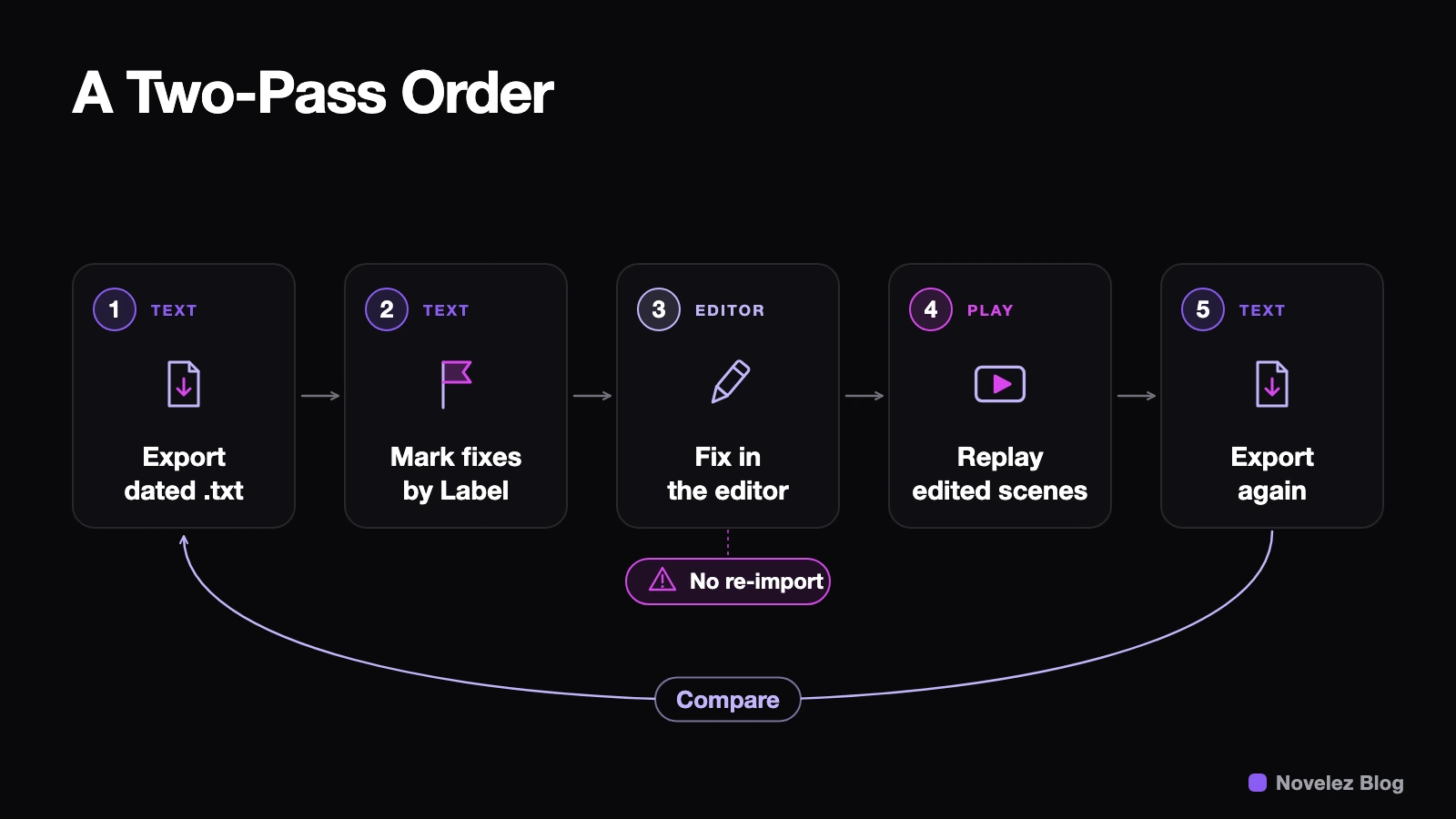
Text first, play second. Changing a word means rewatching a scene, but changing staging rarely means rereading the spelling. This is the sequence I'd use, built on the documented features:
- Before a big pass, export the text and put the date in the file name, as the docs suggest. Novelez can't restore an older saved version as a whole, and undo only reaches recent edits, so this dated file is your baseline.
- Read it in a text editor for the five items above, and write the
Labelname next to every fix you mark. - Make the fixes in the editor. Once a project has two or more chapters, the chapter pills at the top of the Script column filter the list to one chapter, so the label names you noted take you straight to the right place.
- Recheck each edited scene by selecting a line in it and using Play from here. For lines that depend on scores or affection, use Play in the header and follow the real path instead. Play from here applies every Variable block above the selected line in list order, and that can include blocks from branches the player never took.
- When you're done, export again and compare the new file with the baseline in any editor that has a compare view. Only the changes you meant to make should show up.
What limits should you keep in mind?
The export is a review copy, and the project inside the editor is always the master. Because there's no re-import, any outside proofreading or translation has to be copied back by hand, so leave time for that in your schedule. The docs don't say the file carries staging, which is why the play pass can't be skipped. The editor also autosaves three seconds after you stop typing, according to the Editor Overview. A wrong edit gets saved as quickly as a right one, and the dated baseline is how you spot it later.
When both passes are finished, the pre-release checklist in the Sharing and Deploying Overview works well as a final gate: every path reaches an Ending, every Choice destination is connected with no red warnings left, no character or background images are missing, debug lines like {score} are gone, and the credits are filled in.
Which mistake in your own visual novel survived until a playtester found it? And if the text export could show one more thing to make proofreading easier, what would you want it to be?